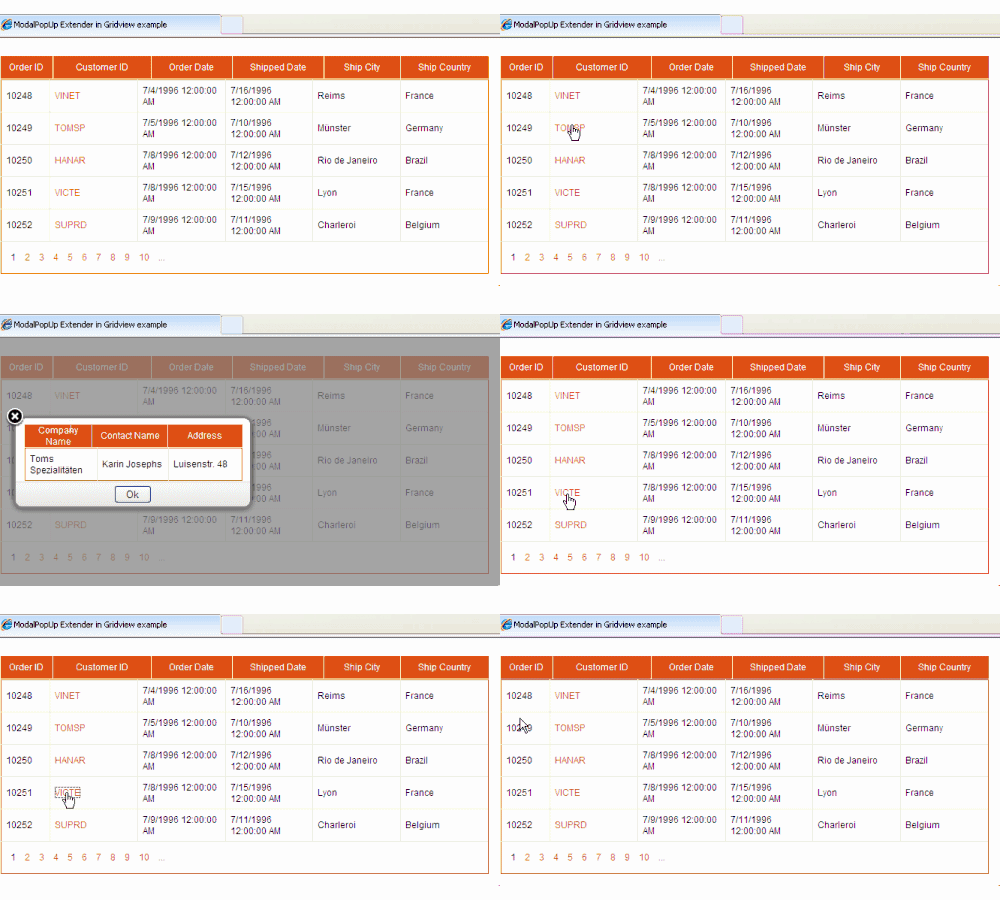
In this sample code i am showing how to implement or use ModalPopUp Extender in Gridview using sqlDataSource, AjaxControlToolkit,Sql Server 2008 and visual studio 2008.
I have used "Orders" and "Customers" table of Northwind database for this example.
If you don't have.
Create new website in VS2008 and Create BIN folder by right clicking and selecting Add ASP.NET folder option in solution explorer.
Open Default.aspx page source and register AjaxControlToolkit in page directive.
<%@ Register Assembly="AjaxControlToolkit"
             Namespace="AjaxControlToolkit"
             TagPrefix="AjaxToolkit" %>
Add following CSS style in head section of page to show modal background.
<style>
.modalBackground
{
background-color:Gray;filter:alpha(opacity=70);opacity:0.7;
}
</style>
Switch to design view and drag toolkitScriptManager on the page Or add it in html source.
<AjaxToolkit:ToolkitScriptManager ID="scriptManager"
                                      runat="server">
    </AjaxToolkit:ToolkitScriptManager>
Drag and place an Update Panel on the page. we will put gridview and modal popup inside it in later part of this post
<asp:UpdatePanel ID="UpdatePanel1" runat="server">
            <ContentTemplate>
            </ContentTemplate>
</asp:UpdatePanel>
Now let's create SQLDataSource to populate the gridview and display orders table data.
switch to design view and drag sqldatasource control on the page and configure it according to pictures below.
<asp:SqlDataSource ID="SqlDataSource1" runat="server"
ConnectionString="<%$ ConnectionStrings:ModalPopUpConnectionString %>"
SelectCommand="SELECT [OrderID], [CustomerID], [OrderDate],
[ShippedDate], [ShipCity], [ShipCountry] FROM [Orders]">
</asp:SqlDataSource>
Now drag and place a GridView inside content template of Update panel and specify sqldatasource as datasource.
<asp:GridView ID="GridView1" runat="server"
              AllowPaging="True" AutoGenerateColumns="False"
              DataKeyNames="OrderID"
              DataSourceID="SqlDataSource1"
              CssClass="Gridview"
              Width="650px" ShowHeader="false" PageSize="5">
<Columns>
<asp:BoundField DataField="OrderID" HeaderText="OrderID"/>
<asp:TemplateField HeaderText="CustomerID">
<ItemTemplate>
<asp:LinkButton runat="server" ID="lnkCustomer"
                Text='<%#Eval("CustomerID") %>'
                OnClick="lnkCustomer_Click">
</asp:LinkButton>
</ItemTemplate>
</asp:TemplateField>
<asp:BoundField DataField="OrderDate" HeaderText="OrderDate"/>
<asp:BoundField DataField="ShippedDate" HeaderText="ShippedDate"/>
<asp:BoundField DataField="ShipCity" HeaderText="ShipCity"/>
<asp:BoundField DataField="ShipCountry" HeaderText="ShipCountry"/>
</Columns>
</asp:GridView>
Now add ModalPopUp extender and specify it's properties as mentioned below
<AjaxToolkit:ModalPopupExtender ID="modalPopUpExtender1"
                           runat="server"
                           TargetControlID="btnModalPopUp"
                           PopupControlID="pnlPopUp"
                           BackgroundCssClass="modalBackground"
                           OkControlID="btnOk"
                           X="20"
                           Y="100">
</AjaxToolkit:ModalPopupExtender>
Now add one panel and one gridview inside this panel to display details
<asp:Panel runat="Server" ID="pnlPopUp" CssClass="confirm-dialog">
<asp:GridView ID="GridView2" runat="server"
              CssClass="Gridview" Width="290px"
              AutoGenerateColumns="false">
</asp:GridView>
</asp:UpdatePanel>
Complete HTML source of page
<form id="form1" runat="server">
    <div>

<AjaxToolkit:ToolkitScriptManager ID="scriptManager"
                                  runat="server">

</AjaxToolkit:ToolkitScriptManager>

<asp:UpdatePanel ID="UpdatePanel1" runat="server">
<ContentTemplate>
<asp:GridView ID="GridView1" runat="server" AllowPaging="True"
              AutoGenerateColumns="False" DataKeyNames="OrderID"
              DataSourceID="SqlDataSource1" CssClass="Gridview"
              Width="650px" ShowHeader="false" PageSize="5">
<Columns>
<asp:BoundField DataField="OrderID" HeaderText="OrderID"/>
<asp:TemplateField HeaderText="CustomerID">
<ItemTemplate>
<asp:LinkButton runat="server" ID="lnkCustomer"
                Text='<%#Eval("CustomerID") %>'
                OnClick="lnkCustomer_Click">
</asp:LinkButton>
</ItemTemplate>
</asp:TemplateField>
<asp:BoundField DataField="OrderDate" HeaderText="OrderDate"/>
<asp:BoundField DataField="ShippedDate" HeaderText="ShippedDate"/>
<asp:BoundField DataField="ShipCity" HeaderText="ShipCity"/>
<asp:BoundField DataField="ShipCountry" HeaderText="ShipCountry"/>
</Columns>
</asp:GridView>

<asp:Button runat="server" ID="btnModalPopUp"
            style="display:none"/>

<AjaxToolkit:ModalPopupExtender ID="modalPopUpExtender1"
             runat="server"
             TargetControlID="btnModalPopUp"
             PopupControlID="pnlPopUp"
             BackgroundCssClass="modalBackground"
             OkControlID="btnOk"
             X="20"
             Y="100">
</AjaxToolkit:ModalPopupExtender>

<asp:Panel runat="Server" ID="pnlPopUp" CssClass="confirm-dialog">
<asp:GridView ID="GridView2" runat="server">
</asp:GridView>
</asp:Panel>
</ContentTemplate>
</asp:UpdatePanel>
<br />
<asp:SqlDataSource ID="SqlDataSource1" runat="server"
ConnectionString="<%$ ConnectionStrings:ModalPopUpConnectionString %>"
SelectCommand="SELECT [OrderID], [CustomerID], [OrderDate],
[ShippedDate], [ShipCity], [ShipCountry] FROM [Orders]">
</asp:SqlDataSource>

    </div>
    </form>
Write following code in Click Event of link Button in gridview to populate details or child gridview
C#
protected void lnkCustomer_Click(object sender, EventArgs e)
    {
        //Retrieve Customer ID
        LinkButton lnkCustomerID = sender as LinkButton;
        string strCustomerID = lnkCustomerID.Text;

        //Create sql connection and fetch data from database based on CustomerID
        string strConnectionString = ConfigurationManager.ConnectionStrings["ModalPopUpConnectionString"].ConnectionString;
        string strSelect = "SELECT CompanyName, ContactName, Address FROM Customers WHERE CustomerID = @customerID";
        SqlConnection sqlCon = new SqlConnection();
        sqlCon.ConnectionString = strConnectionString;
        SqlCommand cmdCustomerDetails = new SqlCommand();
        cmdCustomerDetails.Connection = sqlCon;
        cmdCustomerDetails.CommandType = System.Data.CommandType.Text;
        cmdCustomerDetails.CommandText = strSelect;
        cmdCustomerDetails.Parameters.AddWithValue("@customerID", strCustomerID);
        sqlCon.Open();

        //Create DataReader to read the record
        SqlDataReader dReader = cmdCustomerDetails.ExecuteReader();
        GridView2.DataSource = dReader;
        GridView2.DataBind();
        sqlCon.Close();
        modalPopUpExtender1.Show();
}
VB.NET
Protected Sub lnkCustomer_Click(sender As Object, e As EventArgs)
 'Retrieve Customer ID
 Dim lnkCustomerID As LinkButton = TryCast(sender, LinkButton)
 Dim strCustomerID As String = lnkCustomerID.Text

 'Create sql connection and fetch data from database based on CustomerID
 Dim strConnectionString As String = ConfigurationManager.ConnectionStrings("ModalPopUpConnectionString").ConnectionString
 Dim strSelect As String = "SELECT CompanyName, ContactName, Address FROM Customers WHERE CustomerID = @customerID"
 Dim sqlCon As New SqlConnection()
 sqlCon.ConnectionString = strConnectionString
 Dim cmdCustomerDetails As New SqlCommand()
 cmdCustomerDetails.Connection = sqlCon
 cmdCustomerDetails.CommandType = System.Data.CommandType.Text
 cmdCustomerDetails.CommandText = strSelect
 cmdCustomerDetails.Parameters.AddWithValue("@customerID", strCustomerID)
 sqlCon.Open()

 'Create DataReader to read the record
 Dim dReader As SqlDataReader = cmdCustomerDetails.ExecuteReader()
 GridView2.DataSource = dReader
 GridView2.DataBind()
 sqlCon.Close()
 modalPopUpExtender1.Show()
End Sub
Download Sample Code
Other Posts on ASP.NET C# VB.NET
 Autocomplete TextBox In GridView
 Autocomplete Textbox Progress Image