Showing posts with label JavaScript. Show all posts
0

DropDownList Validation Using JQuery JavaScript In Asp.Net

This post explains DropDownList validation Using Jquery and JavaScript in Asp.Net where DropDown is either bind with SqlDataSource or listItems.

Place one drop down and button on the page in design view and add JQuery javascript file in solution and add it's reference in head section of page. write following JQuery script in head section of page.

   1:  <head runat="server">
   2:  <title></title>
   3:   
   4:  <script src="Scripts/jquery-1.7.2.min.js" type="text/javascript"></script>  
   5:  <script type="text/javascript" language="javascript">
   6:     $(document).ready(function() {
   7:        $('#Button1').on('click', function(e) {
   8:        var selectedText = $('#DropDownList1     option:selected').text().toLowerCase();
   9:         if (selectedText == 'select') 
  10:          {
  11:            alert('Please select any language.');
  12:            e.preventDefault();
  13:          }
  14:          else
  15:                  alert('You selected ' + selectedText);
  16:          })
  17:          
  18:            
  19:   })
  20:      
  21:  </script>
  22:      
  23:  </head>


HTML Source of Drop Down And Button

   1:  <asp:DropDownList ID="DropDownList1" runat="server">
   2:  <asp:ListItem>Select</asp:ListItem>
   3:  <asp:ListItem>C#</asp:ListItem>
   4:  <asp:ListItem>VB</asp:ListItem>
   5:  <asp:ListItem>Java</asp:ListItem>
   6:  <asp:ListItem>C</asp:ListItem>
   7:   </asp:DropDownList>
   8:          
   9:  <asp:Button ID="Button1" runat="server" Text="Button" />


Now if DropDownList is getting populated from DataBase by SqlDataSource then we need to set AppendDataBoundItems property of dropdown to true and add one list item with text Select at 0th index in Page_Load event.

   1:  <asp:DropDownList ID="DropDownList2" runat="server" 
   2:                    AppendDataBoundItems="True" 
   3:                    DataSourceID="SqlDataSource1" 
   4:                    DataTextField="ProductName" 
   5:                    DataValueField="ProductID">
   6:  </asp:DropDownList>
   7:  <asp:SqlDataSource ID="SqlDataSource1" runat="server" 
   8:  ConnectionString="<%$ ConnectionStrings:TestDbConnectionString %>" 
   9:  SelectCommand="SELECT [ProductID], [ProductName] FROM [Products]">
  10:  </asp:SqlDataSource>
  11:      
  12:  <asp:Button ID="Button2" runat="server" Text="Button" />


write following code in code behind.

protected void Page_Load(object sender, EventArgs e)
    {
        DropDownList2.Items.Add(new ListItem("select", "0"));
    }


And write following JQuery code in head section of html source of page.

   1:  <script type="text/javascript" language="javascript">
   2:  $(document).ready(function() {
   3:                 
   4:     $('#Button2').on('click', function(e) {
   5:        var selectedValue = $('#DropDownList2').val();
   6:        if (selectedValue == 0) 
   7:         {
   8:            alert('Please select any product.');
   9:            e.preventDefault();
  10:         }
  11:              else
  12:                 alert('you selected product with ID ' + selectedValue);
  13:          })
  14:      
  15:      })
  16:      
  17:  </script>


If we want to use JavaScript Instead of Jquery then write code in following way

   1:  <script type="text/javascript">
   2:         
   3:   function Validation() {
   4:       var selectedValue =       document.getElementById('<%=DropDownList2.ClientID%>').value;
   5:        if (selectedValue == "0") 
   6:        {
   7:            alert("Please Select Product");
   8:        }
   9:        else {
  10:                  alert("You selected " + selectedValue);
  11:              }
  12:          }
  13:  </script>


Call this function in OnClientClick Event of button

   1:  <asp:Button ID="Button2" runat="server" Text="Button" OnClientClick="Validation()"  />


0

ASP.NET TextBox Remaining Character Counter JavaScript

This example illustrate how to count and show remaining characters in TextBox using JavaScript in Asp.Net.
Create a new website in Visual Studio and place one TextBox and Label on the default.aspx page in design mode.

Go to HTML source of page and write a JavaScript function named Count in head section of page to count remaining characters in TextBox.

Set the MaxLength property of TextBox to 10 chars.


   1:  <head runat="server">
   2:  <title>Remaining Characters Counter</title>
   3:  <script type="text/javascript">
   4:  function Count() {
   5:   
   6:  var i = document.getElementById("TextBox1").value.length;
   7:  document.getElementById("Label1").innerHTML = 10 - i;
   8:          }
   9:  </script>
  10:  </head>

Call this javascript function in onkeyup event of textbox.
   1:  <asp:TextBox ID="TextBox1" runat="server" 
   2:          MaxLength="10" onkeyup="Count()">
   3:  </asp:TextBox>


0

Select GridView Row Without Postback OnClick Of Cell JavaScript

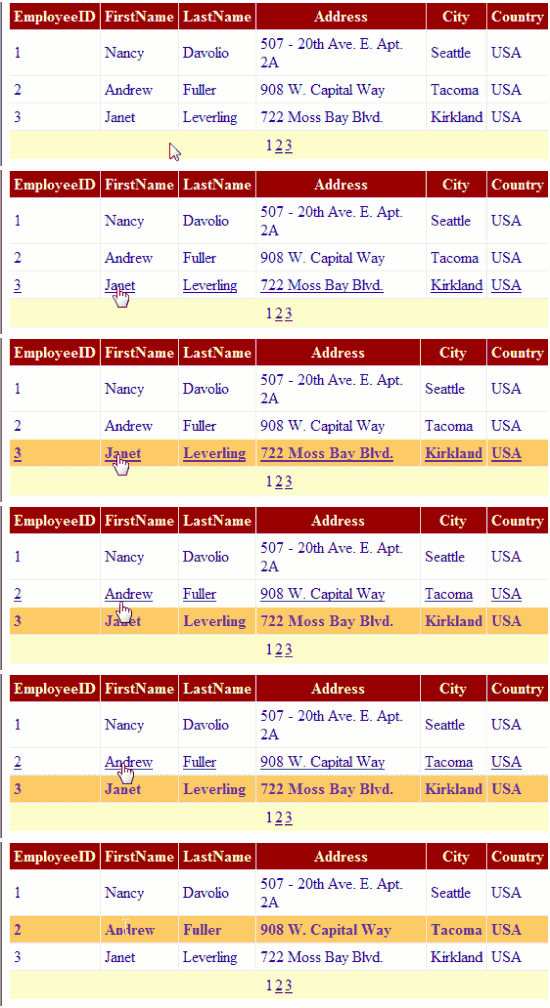
This Example explains how to Select GridView Row On Click Of Cell Programmatically Without Postback Using JavaScript In Asp.Net.

We can make cells clickable by adding OnClick attribute in ClientScript.

Place ScriptManager And UpdatePanel on the page and add Gridview inside ContentTemaplate for partial postbacks, Populate it using SqlDataSource.


HTML SOURCE OF GRIDVIEW
   1:  <asp:ScriptManager ID="ScriptManager1" runat="server"/>
   2:  <asp:UpdatePanel ID="UpdatePanel1" runat="server">
   3:  <ContentTemplate>
   4:   
   5:  <asp:GridView ID="GridView1" runat="server" 
   6:                AutoGenerateColumns="False" 
   7:                DataKeyNames="EmployeeID" 
   8:                DataSourceID="SqlDataSource1" 
   9:                onrowdatabound="GridView1_RowDataBound" 
  10:                AllowPaging="True"    
  11:                onpageindexchanging="GridView1_PageIndexChanging">
  12:  <Columns>
  13:  <asp:BoundField DataField="EmployeeID" HeaderText="EmployeeID"/>
  14:  <asp:BoundField DataField="FirstName" HeaderText="FirstName"/>
  15:  <asp:BoundField DataField="City" HeaderText="City"/>
  16:  <asp:BoundField DataField="Country" HeaderText="Country"/>
  17:  </Columns>
  18:  </asp:GridView>
  19:   
  20:  <asp:SqlDataSource ID="SqlDataSource1" runat="server" 
  21:  ConnectionString="<%$ ConnectionStrings:ConnectionString %>" 
  22:  SelectCommand="SELECT [EmployeeID], [FirstName], [City], 
  23:                [Country] FROM [Employees]">
  24:  </asp:SqlDataSource>
  25:  </ContentTemplate>
  26:  </asp:UpdatePanel>

Write code mentioned below in RowDataBound Event.

C#
protected void GridView1_RowDataBound(object sender, GridViewRowEventArgs e)
    {
        if (e.Row.RowType == DataControlRowType.DataRow)
        {
            e.Row.Attributes["onmouseover"] = "this.style.cursor='hand';";
            e.Row.Attributes["onmouseout"] = "this.style.textDecoration='none';";

            e.Row.Attributes["onclick"] = ClientScript.GetPostBackClientHyperlink(this.GridView1, "Select$" + e.Row.RowIndex);
        }
    }

protected void GridView1_PageIndexChanging(object sender, GridViewPageEventArgs e)
    {
        GridView1.SelectedIndex = -1;
    }

VB.NET
Protected Sub GridView1_RowDataBound(sender As Object, e As GridViewRowEventArgs)
 If e.Row.RowType = DataControlRowType.DataRow Then
  e.Row.Attributes("onmouseover") = "this.style.cursor='hand';"
  e.Row.Attributes("onmouseout") = "this.style.textDecoration='none';"

  e.Row.Attributes("onclick") = ClientScript.GetPostBackClientHyperlink(Me.GridView1, "Select$" & Convert.ToString(e.Row.RowIndex))
 End If
End Sub

Protected Sub GridView1_PageIndexChanging(sender As Object, e As GridViewPageEventArgs)
 GridView1.SelectedIndex = -1
End Sub

While running this code we get EventValidation error.

Invalid postback or callback argument. Event validation is enabled using in configuration or <%@ Page EnableEventValidation="true" %> in a page. For security purposes, this feature verifies that arguments to postback or callback events originate from the server control that originally rendered them. If the data is valid and expected, use the ClientScriptManager.RegisterForEventValidation method in order to register the postback or callback data for validation.

We can fix this by setting EnableEventValidation="false" in page directive but it will be a security risk, so there are other ways to handle this.

Method 1.
Add this style in head section of page
   1:  <style>
   2:  .visibility {Display : none}
   3:  </style>

Now add ShowSelectButton Commandfield column in gridview source and set it's css property to style we added in head. this will hide the select button.
   1:  <asp:CommandField ShowSelectButton="True" 
   2:                    ItemStyle-CssClass="visibility"/>


Method 2.
Remove the code from RowDataBound Event of GridView and OverRide Render event of page, set the last parameter (bool registerForEventValidation) of ClientScript to true.

C#
protected override void Render(System.Web.UI.HtmlTextWriter textWriter)
    {
        foreach (GridViewRow gvRow in GridView1.Rows)
        {
            if (gvRow.RowType == DataControlRowType.DataRow)
            {
                gvRow.Attributes["onmouseover"] =
                   "this.style.cursor='hand';";
                gvRow.Attributes["onmouseout"] =
                   "this.style.textDecoration='none';";
                gvRow.Attributes["onclick"] =
                 ClientScript.GetPostBackClientHyperlink(GridView1, "Select$" + gvRow.RowIndex, true);
            }
        }
        base.Render(textWriter);
    }

VB
Protected Overrides Sub Render(textWriter As System.Web.UI.HtmlTextWriter)
 For Each gvRow As GridViewRow In GridView1.Rows
  If gvRow.RowType = DataControlRowType.DataRow Then
   gvRow.Attributes("onmouseover") = "this.style.cursor='hand';"
   gvRow.Attributes("onmouseout") = "this.style.textDecoration='none';"
   gvRow.Attributes("onclick") = ClientScript.GetPostBackClientHyperlink(GridView1, "Select$" + gvRow.RowIndex, True)
  End If
 Next
 MyBase.Render(textWriter)
End Sub

Select GridView Row On Cell Click

Hope this helps.

0

Avoid Prevent Session TimeOut In Asp.Net To Keep Session Alive

Here i'm explaining How To Avoid Prevent Session TimeOut expiration In Asp.Net 2.0,3,5,4.0 to Keep Session Alive.

We can set timeout value in web.config file using Forms Authentication as mentioned below, Default value is 20 minutes.

This value gets reset or slide if there are calls between client and server and session expiration occurs if idle or no postbacks for specified time.
<authentication mode="Forms"/>
    <sessionState mode="InProc" cookieless="false" timeout="12">
    </sessionState>

This will cause session to expire if user is inactive for 12 minutes, there are scenarios where you would like to prevent timeout to keep session alive if user goes idle beyond set value in web.config.

Method 1:
We can Write a JavaScript to call a blank or empty page on the server at regular interval which should be little less then value specified in web.config.

I have created a KeepSessionAlive.aspx page and will call it every 10 minutes through JavaScript to slide the expiration.


Method 2:
We can use XMLHttpRequest to interact with server.


Method 3:
We can use timer control with update panel to send requests to server.
<asp:ScriptManager ID="ScriptManager1" runat="server"/>
</asp:ScriptManager>
 
<asp:UpdatePanel ID="UpdatePanel1" runat="server">
<ContentTemplate>
<asp:Timer ID="Timer1" runat="server" Interval="600000"/>
</ContentTemplate>
</asp:UpdatePanel>

These methods doesn't need any use interaction or the page to refresh, we can also create and Call WebService Using JQuery Or JavaScript for this.

6

Print GridView Data In Asp.Net Using C# VB JavaScript

To Print GridView Data In Asp.Net Using C# And VB.NET, I have placed GridView inside a Div and this Div will be called for printing using javascript.

Print window will be opened in onclick event of Button. Javascript to print data is written in Page Load event of page and registered with RegisterStartupScript.

Print GridView Data In Asp.Net C# VB

HTML SOURCE OF GRIDVIEW
   1:  <div id="gvDiv">
   2:   
   3:  <asp:GridView ID="gvPrint" runat="server" 
   4:                DataSourceID="SqlDataSource1">
   5:  <Columns>
   6:  <asp:BoundField DataField="CategoryID" 
   7:                  HeaderText="CategoryID"/>
   8:  <asp:BoundField DataField="CategoryName" 
   9:                  HeaderText="CategoryName"/>
  10:  </Columns>
  11:  </asp:GridView>
  12:  </div>
  13:     
  14:  <asp:Button ID="btnPrint" runat="server" 
  15:              Text="Print Data"/>

C# CODE
protected void Page_Load(object sender, EventArgs e)
    {
        string printScript =
        @"function PrintGridView()
         {
            var gridInsideDiv = document.getElementById('gvDiv');
            var printWindow = window.open('gview.htm','PrintWindow','letf=0,top=0,width=150,height=300,toolbar=1,scrollbars=1,status=1');
            printWindow.document.write(gridInsideDiv.innerHTML);
            printWindow.document.close();
            printWindow.focus();
            printWindow.print();
            printWindow.close();}";
        this.ClientScript.RegisterStartupScript(Page.GetType(), "PrintGridView", printScript.ToString(), true);
        btnPrint.Attributes.Add("onclick", "PrintGridView();");       
    }

VB.NET
Protected Sub Page_Load(sender As Object, e As EventArgs)
 Dim printScript As String = "function PrintGridView()
         {
            var gridInsideDiv = document.getElementById('gvDiv');
            var printWindow = window.open('gv.htm','PrintWindow','letf=0,top=0,width=150,height=300,toolbar=1,scrollbars=1,status=1');
            printWindow.document.write(gridInsideDiv.innerHTML);
            printWindow.document.close();
            printWindow.focus();
            printWindow.print();
            printWindow.close();}"
 Me.ClientScript.RegisterStartupScript(Page.[GetType](), "PrintGridView", printScript.ToString(), True)
 btnPrint.Attributes.Add("onclick", "PrintGridView();")
End Sub


0

Asp.Net Call WebService With Parameters From JavaScript JQuery

This example covers how to Call Asp.Net WebService PageMethods Or WebMethod With Parameters From JQuery Or JavaScript.

To Call WebService PageMethod through Ajax ,JavaScript or JQuery we need to uncomment or add following line before writing WebMethod

[System.Web.Script.Services.ScriptService]

Add jquery-1.7.2.min.js in application and reference it in Head section of page.

<head runat="server">
<script src="jquery-1.7.2.min.js" type="text/javascript"/>  
</head>

Add and create Web Service by Right click on solution explorer > Add New Item > WebService.asmx.
I have created a WebMethod which takes and return string parameter in it.

Call Asp.Net WebService From JQuery Or JavaScript


C# CODE
[WebService(Namespace = "http://tempuri.org/")]
[WebServiceBinding(ConformsTo = WsiProfiles.BasicProfile1_1)]
[System.Web.Script.Services.ScriptService]
public class WebService : System.Web.Services.WebService
{
    [WebMethod]
    public string Welcome(string name) 
    { 
        return "Welcome " + name;
    }
}

VB.NET CODE
 
 Public Function Welcome(name As String) As String
  Return "Welcome " & name
 End Function
End Class

Place one text input html control, one input button type on page, you can place asp.net button control either.
Enter Name: <input type="text" id="txtName" />
<asp:Button ID="btn" runat="server" Text="Invoke WebService" 
            OnClientClick="CallWebService(); return false;"/>
        
<asp:Label ID="lblMsg" runat="server" Text=""/>
 
<input type="button" id="btnCall" value="Call Service" 
       onclick="CallWebService(); return false;"/>

Add following Script in Head section of page to call PageMethod using JQuery.

To call WebService using JavaScript, we can write script as follows
Place ScriptManager on the page and add ServiceReference and path in it.

<asp:ScriptManager ID="ScriptManager1" runat="server">
<Services>
<asp:ServiceReference Path="~/WebService.asmx" />
</Services>
</asp:ScriptManager>

Write this Script in Head of page.

Build and run the code.

18

jQuery Fixed Header Scrollable GridView

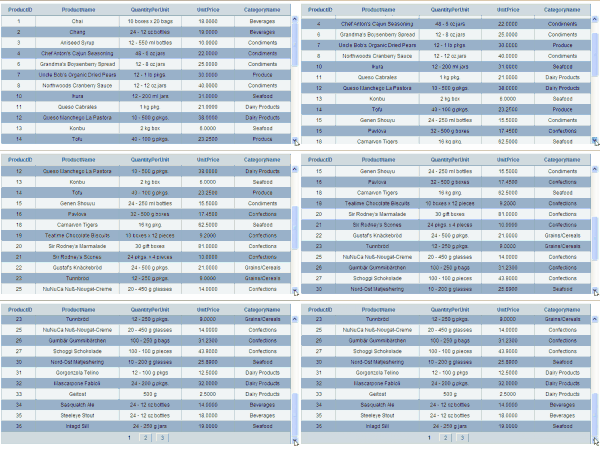
In this example i'm explaining how to create Fixed Header Scrollable Gridview Using jQuery in ASP.NET. add JQuery library and fixed header scrollable gridview plugin in solution and add reference to it between <head></head> section of HTML source of aspx page.

Jquery fixed header scrollable gridview in asp.net
I have used northwind database to populate gridview.

you can also create Scrollable GridView With Fixed Headers Using CSS if you don't want to use jQuery or JavaScript.

<head runat="server">
<title>jQuery Fixed Header Scrollable GridView</title>
<script src="jquery-1.4.1.min.js" type="text/javascript">
</script>
<script src="ScrollableGrid.js" type="text/javascript">
</script>
</head>

Add this JQuery function call between <head></head> section

<script type="text/javascript" language="javascript">
$(document).ready(function() 
{
$('#<%=fixedHeaderScrollableGridView.ClientID %>').Scrollable();
}
)
</script>

Add gridview on aspx page and populate it.

<asp:GridView ID="fixedHeaderScrollableGridView" runat="server" 
              DataSourceID="SqlDataSource1" 
              AutoGenerateColumns="False" 
              DataKeyNames="ProductID" 
              AllowPaging="True" 
              PageSize="30">
<Columns>
<asp:BoundField DataField="ProductID" HeaderText="ProductID"/>
<asp:BoundField DataField="ProductName" HeaderText="ProductName" /> 
<asp:BoundField DataField="QuantityPerUnit" HeaderText="QuantityPerUnit" /> 
<asp:BoundField DataField="UnitPrice" HeaderText="UnitPrice" /> 
<asp:BoundField DataField="CategoryName" HeaderText="CategoryName" /> 
</Columns>
</asp:GridView>
        
<asp:SqlDataSource ID="SqlDataSource1" runat="server" 
ConnectionString="<%$ ConnectionStrings:ConnectionString %>" 
SelectCommand="SELECT [ProductID], [ProductName], [QuantityPerUnit], 
[UnitPrice], [CategoryName] FROM [Alphabetical list of products]">
</asp:SqlDataSource>

Build and Run the application.

If your application uses Master Page then add reference to library and plugin in head ContentPlaceHolder of master page
<head runat="server">
<title>Fixed Header Scrollable GridView With Master Page</title>
<asp:ContentPlaceHolder id="head" runat="server">
 
<script src="jquery-1.4.1.min.js" type="text/javascript"/>
<script src="ScrollableGrid.js" type="text/javascript"/>
 
</asp:ContentPlaceHolder>
  
</head>
<body>
<form id="form1" runat="server">
  
Add Master Page Content And Design Here 
 
<asp:ContentPlaceHolder id="ContentPlaceHolder1" runat="server">
        
</asp:ContentPlaceHolder>
</form>
</body>
</html>


Call Scrollable() function of jquery plugin in Head ContentPlaceHolderID of content page.
<asp:Content ID="Content1" ContentPlaceHolderID="head" Runat="Server">
 
<script type="text/javascript" language="javascript">
$(document).ready(function() 
{
  $('#<%=fixedHeaderScrollableGridView.ClientID %>').Scrollable();
}
)
</script>
</asp:Content>
<asp:Content ID="Content2" ContentPlaceHolderID="ContentPlaceHolder1" Runat="Server">
<div>
Put Gridview Source Here 
</div>
</asp:Content>


Download Sample Code


3

Hide Show Div Using JQuery Asp.Net

Show Hide Div Using JQuery Example In Asp.Net. So many times while developing Asp.Net web application we need to show or hide div or other html elements based on user interaction as shown in picture.
we can do this with ease using JQuery
Show or Hide Div using jquery
First of all we need to add reference to jquery in head section of page.

Add Reference in HTML Source


Write some CSS for div and button
.button, .button:visited {
 background: #222;
 display: inline-block;
 padding: 5px 10px 6px;
 color: #fff;
 text-decoration: none;
 -moz-border-radius: 6px;
 -webkit-border-radius: 6px;
 -moz-box-shadow: 0 1px 3px rgba(0,0,0,0.6);
 -webkit-box-shadow: 0 1px 3px rgba(0,0,0,0.6);
 text-shadow: 0 -1px 1px rgba(0,0,0,0.25);
 border-bottom: 1px solid rgba(0,0,0,0.25);
 font-size: 11px;font-weight: bold;line-height: 1;text-shadow: 0 -1px 1px rgba(0,0,0,0.25);
        background-color: #2981e4;
        top:250px;
        float:left;
        left:150px;
        position:fixed;
        
}
.button:hover {background-color: #2575cf;}

.detailDiv {
 height:80px;
        width: 400px;
 background: #222;
 display: inline-block;
 padding: 50px 10px 6px;
 color: #fff;
 text-decoration: none;
 -moz-border-radius: 6px;
 -webkit-border-radius: 6px;
 -moz-box-shadow: 0 1px 3px rgba(0,0,0,0.6);
 -webkit-box-shadow: 0 1px 3px rgba(0,0,0,0.6);
 text-shadow: 0 -1px 1px rgba(0,0,0,0.25);
 border-bottom: 1px solid rgba(0,0,0,0.25);
 position: relative;
 cursor: pointer
        font-size: 11px;font-weight: bold;line-height: 1;text-shadow: 0 -1px 1px rgba(0,0,0,0.25);
        background-color: #91bd09;
 text-align:center;
}
.detailDiv:hover {background-color: #749a02;}


Write following html code to hide or show div
<div class="detailDiv">
This is example of Hide show div element using jquery 
</div>

<button class="button">Show or Hide div </button>

Now we will be showing or hiding the div on click of button so we need to add click event listener in jquery function as follows.


And result will be like one in demo below, Click on button to see it live.


This is example of Hide show div element using jquery


Have fun with JQuery

11

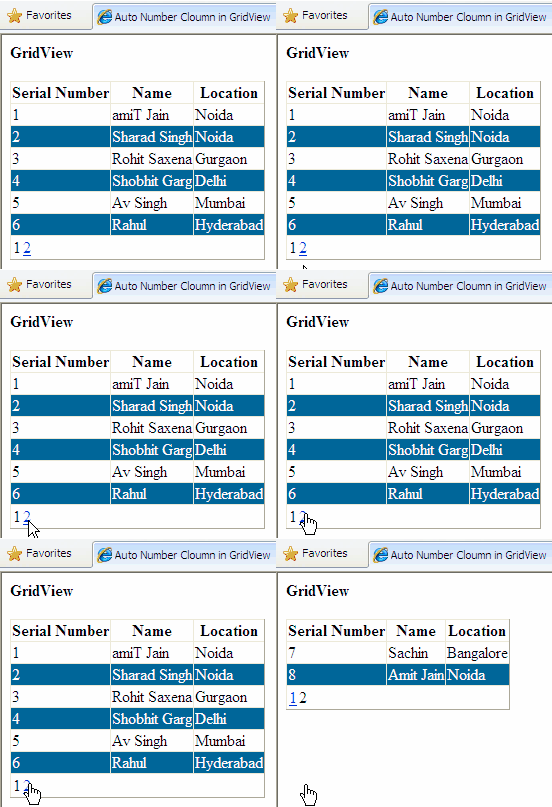
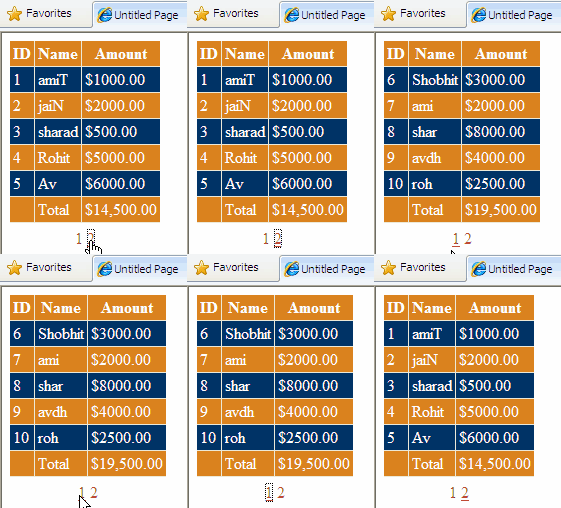
GridView Examples In ASP.NET 2.0 3.5 4.0 4.5

26

ASP.NET Open PopUp Window Update Refresh Values

This example explains how to Open PopUp Window In Asp.Net And Update Refresh Parent Child Values using ClientScript And RegisterStartupScript.
I am opening popup window from aspx page and updating values in parent window from child or popup window using javascript and ClientScript.RegisterStartupScript.

Open PopUp Window In Asp.Net
I have added to labels in Default.aspx page and one button to open popup window.

I've also added a PopUp.aspx page which is having two textboxes and a button to update lable values of parent page.

The textboxes in popup window are populated with Text values of lables in parent page (Default.aspx), after making changes in textbox values i'm updating values back in parent page.

HTML source Parent page
<form id="form1" runat="server">
<div>
First Name :
<asp:Label ID="lblFirstName" runat="server" Text="amiT">
</asp:Label><br />
 <br />
Last Name:&nbsp;
<asp:Label ID="lblLastName" runat="server" Text="jaiN">
</asp:Label><br />
<br />
<asp:Button ID="btnPop" runat="server" Text="Click To Edit Values" />
</div>
</form>


Write following JavaScript in Head section of page.
   1:  <script type="text/javascript">
   2:  function openPopUp()
   3:  {
   4:   var popUrl = 'PopUp.aspx?fn=' + document.getElementById('<%= lblFirstName.ClientID %>').innerHTML + '&ln=' + document.getElementById('<%= lblLastName.ClientID %>').innerHTML;
   5:   var name = 'popUp';
   6:   var appearence ='dependent=yes,menubar=no,resizable=no,'+
   7:                   'status=no,toolbar=no,titlebar=no,' +
   8:                   'left=5,top=280,width=230px,height=140px';
   9:  var openWindow = window.open(popUrl, name, appearence);
  10:  openWindow.focus();
  11:  }
  12:  </script>


In this i m getting values of lables and passing them to popuup page as querystrings

Write this code in Page_Load event of Default.aspx (parent) page
C# CODE
protected void Page_Load(object sender, EventArgs e)
{
 string updateValuesScript = 
@"function updateValues(popupValues)
{
 document.getElementById('lblFirstName').innerHTML=popupValues[0];
 document.getElementById('lblLastName').innerHTML=popupValues[1];
}";
        
this.ClientScript.RegisterStartupScript(Page.GetType(), 
"UpdateValues", updateValuesScript.ToString(), true);
btnPop.Attributes.Add("onclick", "openPopUp('PopUp.aspx')");
}

VB.NET
Protected Sub Page_Load(ByVal sender As Object, ByVal e As EventArgs)
    Dim updateValuesScript As String = "function updateValues(popupValues)" & vbCr & vbLf & "{" & vbCr & vbLf & " document.getElementById('lblFirstName').innerHTML=popupValues[0];" & vbCr & vbLf & " document.getElementById('lblLastName').innerHTML=popupValues[1];" & vbCr & vbLf & "}"
    
    Me.ClientScript.RegisterStartupScript(Page.[GetType](), "UpdateValues", updateValuesScript.ToString(), True)
    btnPop.Attributes.Add("onclick", "openPopUp('PopUp.aspx')")
End Sub

HTML SOURCE OF PopUp.aspx(child) page

<form id="form1" runat="server">
<div>
First Name :
<asp:TextBox ID="txtPopFName" runat="server" Width="113px">
</asp:TextBox><br />
<br />
Last Name:<asp:TextBox ID="txtPopLName" runat="server" 
                       Width="109px">
</asp:TextBox><br />
<br />
<asp:Button ID="Button1" runat="server" OnClick="Button1_Click" 
            Text="Button" /></div>
</form>


C# CODE PopUp.aspx
protected void Page_Load(object sender, EventArgs e)
{
 string updateParentScript = 
 @"function updateParentWindow()
 {                                                                               
   var fName=document.getElementById('txtPopFName').value;     
   var lName=document.getElementById('txtPopLName').value;   
   var arrayValues= new Array(fName,lName);
   window.opener.updateValues(arrayValues);       
   window.close(); 
 }";
 this.ClientScript.RegisterStartupScript(this.GetType(), 
     "UpdateParentWindow", updateParentScript, true);
 if (!IsPostBack)
 {
   txtPopFName.Text = Request["fn"];
   txtPopLName.Text = Request["ln"];
 }
   Button1.Attributes.Add("onclick", "updateParentWindow()");
}

VB.NET
Protected Sub Page_Load(ByVal sender As Object, ByVal e As EventArgs)
    Dim updateParentScript As String = "function updateParentWindow()" & vbCr & vbLf & " {                                                                               " & vbCr & vbLf & "   var fName=document.getElementById('txtPopFName').value;     " & vbCr & vbLf & "   var lName=document.getElementById('txtPopLName').value;   " & vbCr & vbLf & "   var arrayValues= new Array(fName,lName);" & vbCr & vbLf & "   window.opener.updateValues(arrayValues);       " & vbCr & vbLf & "   window.close(); " & vbCr & vbLf & " }"
    Me.ClientScript.RegisterStartupScript(Me.[GetType](), "UpdateParentWindow", updateParentScript, True)
    If Not IsPostBack Then
        txtPopFName.Text = Request("fn")
        txtPopLName.Text = Request("ln")
    End If
    Button1.Attributes.Add("onclick", "updateParentWindow()")
End Sub

Hope this helps

Download sample code attached


16

AutocompleteExtender Textbox Loading Progress Image

Add or show Animated Loading or progress GIF Image in Ajax AutoCompleteExtender textbox using asp.net 2.0 and 3.5.

In this example i m going to describe how to add animated Progress Image inside Ajax Auto complete extender textbox to represent loading of data.

For achieving this functionality i am using two different approaches for different versions of AjaxControlToolkit.dll


If you are looking for how to implement AutoComplete textbox than read
Ajax autocomplete extender textbox in EditItemTemaplate of GridView
If you are looking for ajax cascading dropdownlist then read
Ajax Cascading DropDownList in GridView with databse in ASP.NET


1st Approach

This approach is very simple and can be handy if you are using older/earlier version of AjaxControlToolkit (eg versions like 1.0.10201.0) which does not support css properties or properties like onclientpopulating.
For this write the below mentioned javascript in head section of html markup of the aspx page

<script type="text/javascript">
function ShowImage()
{
 document.getElementById('txtAutoComplete')
      .style.backgroundImage  = 'url(images/loader.gif)';
 
 document.getElementById('txtAutoComplete')
                    .style.backgroundRepeat= 'no-repeat';
                    
 document.getElementById('txtAutoComplete')
                    .style.backgroundPosition = 'right';
}
function HideImage()
{
 document.getElementById('txtAutoComplete')
                      .style.backgroundImage  = 'none';
} 
</script>

In this script I've written two function to show and hide image, in the functions i m setting the background image style using document.getElementByID method

Now write this code in Page_Load event of aspx page
protected void Page_Load(object sender, EventArgs e)
{
 this.txtAutoComplete.Attributes.Add
                          ("onkeypress", "ShowImage()");
 this.txtAutoComplete.Attributes.Add
                              ("onblur", "HideImage()");
}
Here i've added onblur and onkeypress attributes to textbox and calling respective function of javascript to show hide image.
Build the solution and run ti see the results

2nd approach

This approach works if you are using newer versions of AjaxControlToolkit.dll (Version 1.0.20229.20821 or later)
For this write the above mentioned javascript in head section of html markup of page.
Now in source of autocomplete extender add onclientpopulating="ShowImage" and onclientpopulated="HideImage"
<ajaxToolkit:AutoCompleteExtender runat="server" 
                ID="AutoComplete1"
                BehaviorID="autoComplete"
                TargetControlID="txtAutoComplete"
                ServicePath="AutoComplete.asmx" 
                ServiceMethod="GetCompletionList"
                MinimumPrefixLength="1" 
                CompletionInterval="10"
                EnableCaching="true"
                CompletionSetCount="12"
                CompletionListCssClass=
                "autocomplete_completionListElement"
                CompletionListItemCssClass=
                "autocomplete_listItem"
                CompletionListHighlightedItemCssClass=
                "autocomplete_highlightedListItem"
                onclientpopulating="ShowImage"
                onclientpopulated="HideImage">
           </ajaxToolkit:AutoCompleteExtender>

Complete html source of the page look like
<head runat="server">
<title>Progress Image in AutoComplete TextBox</title>

<script type="text/javascript">
function ShowImage()
{
 document.getElementById('txtAutoComplete')
      .style.backgroundImage  = 'url(images/loader.gif)';
 
 document.getElementById('txtAutoComplete')
                    .style.backgroundRepeat= 'no-repeat';
                    
 document.getElementById('txtAutoComplete')
                    .style.backgroundPosition = 'right';
}
function HideImage()
{
 document.getElementById('txtAutoComplete')
                      .style.backgroundImage  = 'none';
} 
</script>
</head>
<body>
<form id="form1" runat="server">
<asp:ScriptManager ID="ScriptManager1" runat="server">
<Services>
<asp:ServiceReference Path="AutoComplete.asmx" />
</Services>
</asp:ScriptManager>
<br />
<div>
<asp:TextBox ID="txtAutoComplete" runat="server" Width="252px">
</asp:TextBox><br />
<ajaxToolkit:AutoCompleteExtender runat="server" 
                ID="AutoComplete1"
                BehaviorID="autoComplete"
                TargetControlID="txtAutoComplete"
                ServicePath="AutoComplete.asmx" 
                ServiceMethod="GetCompletionList"
                MinimumPrefixLength="1" 
                CompletionInterval="10"
                EnableCaching="true"
                CompletionSetCount="12"
                CompletionListCssClass=
                "autocomplete_completionListElement"
                CompletionListItemCssClass=
                "autocomplete_listItem"
                CompletionListHighlightedItemCssClass=
                "autocomplete_highlightedListItem"
                onclientpopulating="ShowImage"
                onclientpopulated="HideImage">
           </ajaxToolkit:AutoCompleteExtender>
           </div>
    </form>

Hope this helps

Find More Articles