Showing posts with label GridView. Show all posts
0

Ajax ConfirmButtonExtender With ModalPopUp In GridView Asp.Net

This example implements Ajax ConfirmButtonExtender With ModalPopUp Extender In Asp.Net GridView to show Delete Confirmation before deleting records.

Populate GridView using SqlDataSource and add one LinkButton inside TemplateField in Columns.

   1:  <asp:TemplateField HeaderText="Delete">
   2:  <ItemTemplate>
   3:  <asp:LinkButton ID="lnkDel" runat="server" 
   4:                  CommandName="Delete" Text="Delete"/>


Place ToolkitScriptManager and UpdatePanel on the page and add ConfirmButton, ModalPopUpExtender and Panel to pop inside Template field we added earlier.

HTML SOURCE
<div>
<asp:ToolkitScriptManager ID="ToolkitScriptManager1" runat="server"/>
<asp:UpdatePanel ID="UpdatePanel1" runat="server">
<ContentTemplate>
        
<asp:GridView ID="GridView1" runat="server" 
              AutoGenerateColumns="False" 
              DataKeyNames="ProductID" 
              DataSourceID="SqlDataSource1"
              onrowdeleted="GridView1_RowDeleted">
<Columns>
<asp:TemplateField HeaderText="Delete">
<ItemTemplate>
<asp:LinkButton ID="lnkDel" runat="server" 
                CommandName="Delete" Text="Delete"/>
                
<asp:ConfirmButtonExtender ID="ConfirmButtonExtender1" 
                           runat="server" 
                           TargetControlID="lnkDel"
                           DisplayModalPopupID="ModalPopupExtender1"/>
                                        
<asp:ModalPopupExtender ID="ModalPopupExtender1" 
                        runat="server"
                        TargetControlID="lnkDel"
                        PopupControlID="pnlModal"
                        BackgroundCssClass="Background"
                        OkControlID="btnYes"
                        CancelControlID="btnNo"
                        X="80"
                        Y="80"/>
 
<asp:Panel runat="Server" ID="pnlModal" CssClass="Pnl">
<br />         
Do you want to delete this record
<br /><br />
<asp:Button ID="btnYes" runat="server" Text="Yes"/>
<asp:Button ID="btnNo" runat="server" Text="No"/>
</asp:Panel>
</ItemTemplate>
</asp:TemplateField>
 
<asp:BoundField DataField="ProductID" HeaderText="ProductID"/>
<asp:BoundField DataField="ProductName" HeaderText="ProductName"/> 
<asp:BoundField DataField="UnitPrice" HeaderText="UnitPrice"/> 
<asp:BoundField DataField="UnitsInStock" HeaderText="UnitsInStock"/> 
</Columns>
</asp:GridView>
 
<asp:Label ID="lblMessage" runat="server" Text=""/>
</ContentTemplate>
</asp:UpdatePanel>
 
<asp:SqlDataSource ID="SqlDataSource1" runat="server" 
ConnectionString="<%$ ConnectionStrings:NorthwindConnectionString %>" 
DeleteCommand="DELETE FROM [Products] 
               WHERE [ProductID] = @ProductID" 
SelectCommand="SELECT [ProductID], [ProductName], 
              [UnitPrice], [UnitsInStock] FROM [Products]" 
        
<DeleteParameters>
<asp:Parameter Name="ProductID" Type="Int32" />
</DeleteParameters>
</asp:SqlDataSource>
</div>


Add following CSS style in Head section of the page.
  

Build and run the code
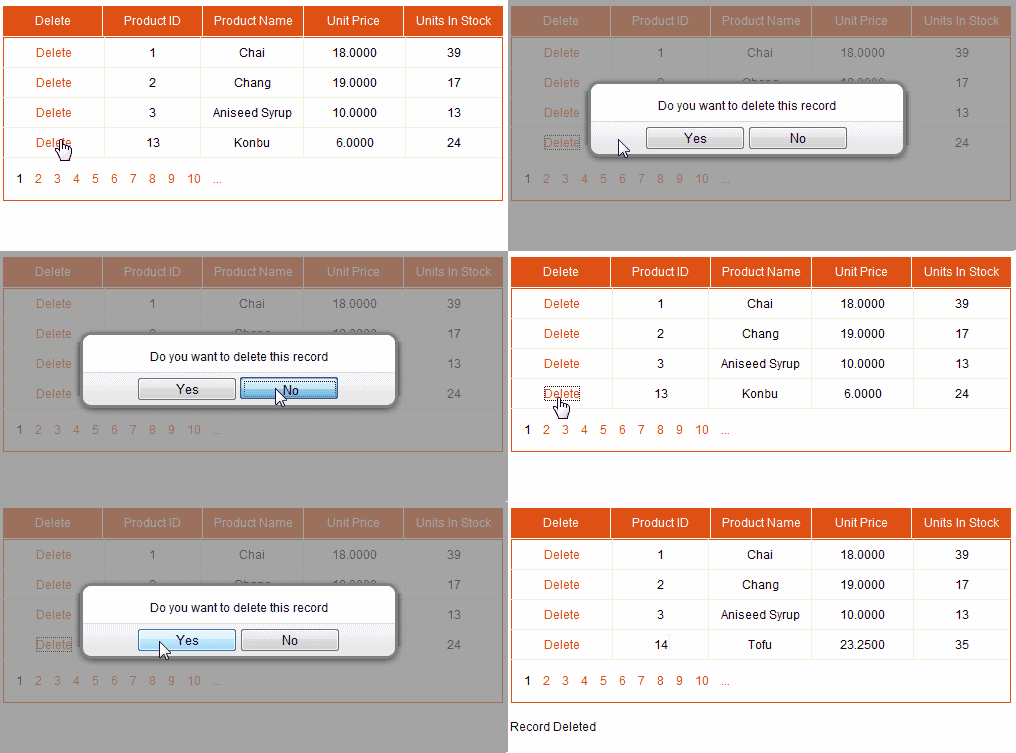
AJax ConfirmButtonExtender With ModalPopUp In GridView Asp.Net

Download Sample Code


2

Auto Refresh Update GridView In Asp.Net Ajax With Timer

This Example describes How To Auto Refresh Or Update GridView Automatically At Regular Interval In Asp.Net Using Ajax And Timer.

Add GridView And Timer control inside UpdatePanel on the page and set Interval property to desired value in miliseconds. I have set it to 5000 (5 Seconds).

HTML SOURCE
   1:  <asp:ScriptManager ID="ScriptManager1" runat="server"/>
   2:  <asp:UpdatePanel ID="UpdatePanel1" runat="server">
   3:  <ContentTemplate>
   4:   
   5:  <asp:Timer ID="AutoRefreshTimer" runat="server" 
   6:             Interval="5000" 
   7:             ontick="AutoRefreshTimer_Tick"/>
   8:                              
   9:  <asp:GridView ID="GridView1" runat="server" 
  10:                AutoGenerateColumns="False" 
  11:                DataSourceID="SqlDataSource1">
  12:  <Columns>
  13:  <asp:BoundField DataField="FirstName" HeaderText="FirstName"/>
  14:  <asp:BoundField DataField="LastName" HeaderText="LastName"/>
  15:  <asp:BoundField DataField="Location" HeaderText="Location"/>
  16:  </Columns>
  17:  </asp:GridView>
  18:   
  19:  <asp:SqlDataSource ID="SqlDataSource1" runat="server" 
  20:  ConnectionString="<%$ ConnectionStrings:ConnectionString %>" 
  21:  SelectCommand="SELECT [FirstName], [LastName], [Location] 
  22:                 FROM [Details]">
  23:  </asp:SqlDataSource>
  24:   
  25:  <asp:Label ID="lblMsg" runat="server"/>
  26:  </ContentTemplate>
  27:  </asp:UpdatePanel>


Rebind GridView In Tick Event of Timer to refresh.

C#
protected void AutoRefreshTimer_Tick(object sender, EventArgs e)
    {
        GridView1.DataBind();
        lblMsg.Text = "Last Updated at " + DateTime.Now;
    }


Image below shows the implementation.

Automatically Refresh Update Asp.Net GridView with Ajax Timer

Hope this helps.

0

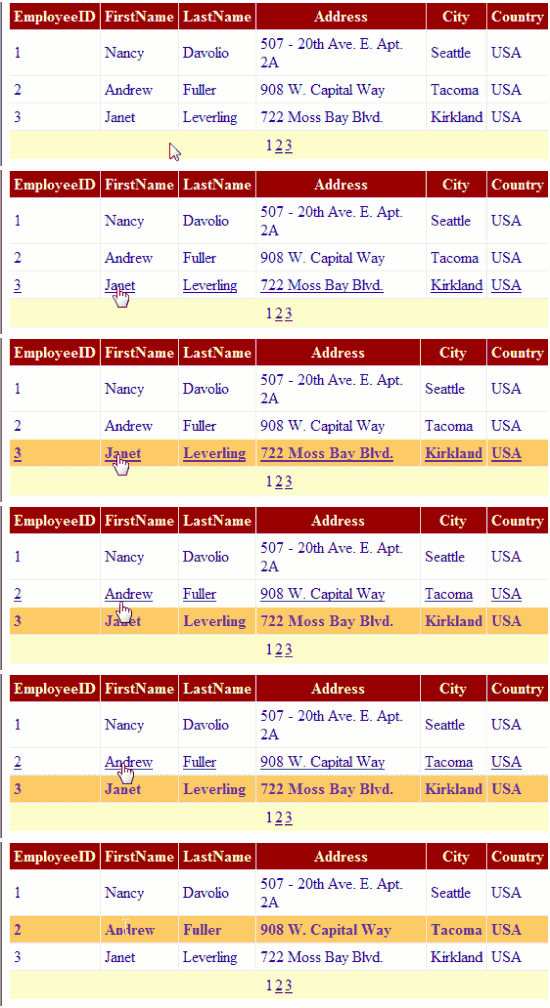
Select GridView Row Without Postback OnClick Of Cell JavaScript

This Example explains how to Select GridView Row On Click Of Cell Programmatically Without Postback Using JavaScript In Asp.Net.

We can make cells clickable by adding OnClick attribute in ClientScript.

Place ScriptManager And UpdatePanel on the page and add Gridview inside ContentTemaplate for partial postbacks, Populate it using SqlDataSource.


HTML SOURCE OF GRIDVIEW
   1:  <asp:ScriptManager ID="ScriptManager1" runat="server"/>
   2:  <asp:UpdatePanel ID="UpdatePanel1" runat="server">
   3:  <ContentTemplate>
   4:   
   5:  <asp:GridView ID="GridView1" runat="server" 
   6:                AutoGenerateColumns="False" 
   7:                DataKeyNames="EmployeeID" 
   8:                DataSourceID="SqlDataSource1" 
   9:                onrowdatabound="GridView1_RowDataBound" 
  10:                AllowPaging="True"    
  11:                onpageindexchanging="GridView1_PageIndexChanging">
  12:  <Columns>
  13:  <asp:BoundField DataField="EmployeeID" HeaderText="EmployeeID"/>
  14:  <asp:BoundField DataField="FirstName" HeaderText="FirstName"/>
  15:  <asp:BoundField DataField="City" HeaderText="City"/>
  16:  <asp:BoundField DataField="Country" HeaderText="Country"/>
  17:  </Columns>
  18:  </asp:GridView>
  19:   
  20:  <asp:SqlDataSource ID="SqlDataSource1" runat="server" 
  21:  ConnectionString="<%$ ConnectionStrings:ConnectionString %>" 
  22:  SelectCommand="SELECT [EmployeeID], [FirstName], [City], 
  23:                [Country] FROM [Employees]">
  24:  </asp:SqlDataSource>
  25:  </ContentTemplate>
  26:  </asp:UpdatePanel>

Write code mentioned below in RowDataBound Event.

C#
protected void GridView1_RowDataBound(object sender, GridViewRowEventArgs e)
    {
        if (e.Row.RowType == DataControlRowType.DataRow)
        {
            e.Row.Attributes["onmouseover"] = "this.style.cursor='hand';";
            e.Row.Attributes["onmouseout"] = "this.style.textDecoration='none';";

            e.Row.Attributes["onclick"] = ClientScript.GetPostBackClientHyperlink(this.GridView1, "Select$" + e.Row.RowIndex);
        }
    }

protected void GridView1_PageIndexChanging(object sender, GridViewPageEventArgs e)
    {
        GridView1.SelectedIndex = -1;
    }

VB.NET
Protected Sub GridView1_RowDataBound(sender As Object, e As GridViewRowEventArgs)
 If e.Row.RowType = DataControlRowType.DataRow Then
  e.Row.Attributes("onmouseover") = "this.style.cursor='hand';"
  e.Row.Attributes("onmouseout") = "this.style.textDecoration='none';"

  e.Row.Attributes("onclick") = ClientScript.GetPostBackClientHyperlink(Me.GridView1, "Select$" & Convert.ToString(e.Row.RowIndex))
 End If
End Sub

Protected Sub GridView1_PageIndexChanging(sender As Object, e As GridViewPageEventArgs)
 GridView1.SelectedIndex = -1
End Sub

While running this code we get EventValidation error.

Invalid postback or callback argument. Event validation is enabled using in configuration or <%@ Page EnableEventValidation="true" %> in a page. For security purposes, this feature verifies that arguments to postback or callback events originate from the server control that originally rendered them. If the data is valid and expected, use the ClientScriptManager.RegisterForEventValidation method in order to register the postback or callback data for validation.

We can fix this by setting EnableEventValidation="false" in page directive but it will be a security risk, so there are other ways to handle this.

Method 1.
Add this style in head section of page
   1:  <style>
   2:  .visibility {Display : none}
   3:  </style>

Now add ShowSelectButton Commandfield column in gridview source and set it's css property to style we added in head. this will hide the select button.
   1:  <asp:CommandField ShowSelectButton="True" 
   2:                    ItemStyle-CssClass="visibility"/>


Method 2.
Remove the code from RowDataBound Event of GridView and OverRide Render event of page, set the last parameter (bool registerForEventValidation) of ClientScript to true.

C#
protected override void Render(System.Web.UI.HtmlTextWriter textWriter)
    {
        foreach (GridViewRow gvRow in GridView1.Rows)
        {
            if (gvRow.RowType == DataControlRowType.DataRow)
            {
                gvRow.Attributes["onmouseover"] =
                   "this.style.cursor='hand';";
                gvRow.Attributes["onmouseout"] =
                   "this.style.textDecoration='none';";
                gvRow.Attributes["onclick"] =
                 ClientScript.GetPostBackClientHyperlink(GridView1, "Select$" + gvRow.RowIndex, true);
            }
        }
        base.Render(textWriter);
    }

VB
Protected Overrides Sub Render(textWriter As System.Web.UI.HtmlTextWriter)
 For Each gvRow As GridViewRow In GridView1.Rows
  If gvRow.RowType = DataControlRowType.DataRow Then
   gvRow.Attributes("onmouseover") = "this.style.cursor='hand';"
   gvRow.Attributes("onmouseout") = "this.style.textDecoration='none';"
   gvRow.Attributes("onclick") = ClientScript.GetPostBackClientHyperlink(GridView1, "Select$" + gvRow.RowIndex, True)
  End If
 Next
 MyBase.Render(textWriter)
End Sub

Select GridView Row On Cell Click

Hope this helps.

0

GridView Articles In Asp.Net 2.0 3.5 4.0

Below is the list of some GridView Articles In Asp.Net 2.0 3.5 and 4.0, Which i have complied from some of the earlier posts related to GridView at one place.

1. Insert Update Edit Delete Rows Record In GridView
How To Insert Update Edit Delete Records With SqlDataSource Using C# VB.NET Asp.Net.

2.Drag Drop GridView Rows With JQuery
How To Implement Drag And Drop Functionality Using JQuery JavaScript To Rearrange Rows On Client Side.

3. Display Files In GridView From Server Directory
This Example Show How To Display Files Directory Sub Directories In From Server.

4. Nested GridView With Expand Collapse
Create Nested GridView With Expand Collapse Functionality.

5. Sort GridView By Columns Header In Ascending Descending
Enable Sorting In GridView By Clicking on Columns Or Headers In Ascending Or Descending Direction.

6. Hide Disable CommandField ButtonField
How to Conditionally Hide Or Disable CommandField Or ButtonField Programmatically.

7. Running Total In Gridview Footer
Display Running Total In Footer Row In ASP.NET using C# and VB.NET.

8. Freeze Headers With Scrollable GridView
Freeze Headers With Scrollable GridView Using CSS.

9. Images In Gridview DataList Using ObjectDataSource
Add or Show Images Using ObjectDataSource.

10. GridView With ObjectDataSource To Insert Edit Update
Insert Edit Update GridView With ObjectDataSource In Asp.Net 2.0,3.5,4.0.

11. AutoNumber Column In GridView DataList ASP.NET
How to Add AutoNumber Column In GridView Or DataList.

12. Search Records And Highlight Results Using Ajax
Search Records In GridView Footer and highlight results using ajax.

13. Edit Update GridView With Ajax ModalPopUpExtender
How To Edit Update GridView Rows Records With Ajax ModalPopUpExtender

14. Print GridView Data JavaScript
How To Print GridView Data In Asp.Net

15. Ajax Cascading DropDownList With Database In GridView
This example implements Ajax Cascading DropDownList In GridView Using Asp.Net 2.0,3.5,4.0

4

Drag Drop GridView Rows With JQuery Asp.Net

This Example explains How To Implement Drag And Drop GridView Rows Functionality Using JQuery JavaScript In Asp.Net 2.0 3.5 4.0 To Rearrange Row On Client Side.

You need to download and add JQuery and TableDnD plugin in your application.

GridView is populated with Northwind database using SqlDataSource.

Drag Drop Gridview Rows Using JQuery


Add Script references and css style in head section of page.

   1:  <style type="text/css">
   2:     .highlight
   3:      {
   4:          color : White !important;
   5:          background-color : Teal !important;
   6:      }
   7:  </style>
   8:  <script src="jquery-1.7.1.js" type="text/javascript"/>
   9:  <script src="jquery.tablednd.0.7.min.js" type="text/javascript"/>

Call tableDnD function of drag and drop plugin by passing Gridview Id.

   1:  <script type="text/javascript" language="javascript">
   2:  $(document).ready(function() 
   3:  {
   4:  $("#<%=GridView1.ClientID%>").tableDnD(
   5:              {
   6:                  onDragClass: "highlight"
   7:              });
   8:  });
   9:  </script>
  10:  </head>

   1:  <asp:GridView ID="GridView1" runat="server" AllowPaging="True" 
   2:                AutoGenerateColumns="False" DataKeyNames="OrderID" 
   3:                DataSourceID="SqlDataSource1">
   4:  <Columns>
   5:  <asp:BoundField DataField="OrderID" HeaderText="OrderID"/>
   6:  <asp:BoundField DataField="Freight" HeaderText="Freight"/>
   7:  <asp:BoundField DataField="ShipName" HeaderText="ShipName"/>
   8:  <asp:BoundField DataField="ShipCity" HeaderText="ShipCity"/>
   9:  <asp:BoundField DataField="ShipCountry" HeaderText="ShipCountry"/>
  10:  </Columns>
  11:  </asp:GridView>

Build and run the code.

1

Edit Update GridView With Ajax ModalPopUpExtender Example

This Example explains How To Edit Update GridView Rows Records With Ajax ModalPopUpExtender In Asp.Net Using C# and VB.NET.

I'm using northwind database and SqlDataSource control for record updation to reduce as much code behind as possible.

Create a Bin folder in solution explorer and put AjaxControlToolkit.dll in it.
Place ToolkitScriptManager and UpdatePanel on page, Configure SqlDataSource to fetch records from Employees table and assign it as DataSource of GridView.

Edit GridView With Ajax ModalPopUpExtender

Place Gridview inside ContentTemplate Add one ButtonField in Grid And define EmployeeID as it's DataKeyNames property.

HTML SOURCE OF GRIDVIEW
   1:  <Ajax:ToolkitScriptManager ID="ToolkitScriptManager1" 
   2:                             runat="server"/>
   3:  <asp:UpdatePanel ID="UpdatePanel1" runat="server">
   4:  <ContentTemplate>
   5:    
   6:  <asp:GridView ID="gvParent" runat="server" 
   7:                AutoGenerateColumns="False" 
   8:                DataKeyNames="EmployeeID" 
   9:                DataSourceID="SqlDataSource1" 
  10:                onrowcommand="gvParent_RowCommand">
  11:  <Columns>
  12:  <asp:ButtonField Text="Edit" CommandName="OpenPopUp"/>
  13:  <asp:BoundField DataField="EmployeeID" HeaderText="ID" 
  14:                  InsertVisible="False" ReadOnly="True" 
  15:                  SortExpression="EmployeeID"/>
  16:  <asp:BoundField DataField="LastName" HeaderText="LastName" 
  17:                  SortExpression="LastName"/>
  18:  <asp:BoundField DataField="FirstName" HeaderText="FirstName" 
  19:                  SortExpression="FirstName"/>
  20:  <asp:BoundField DataField="Country" HeaderText="Country" 
  21:                  SortExpression="Country"/>
  22:  </Columns>
  23:  </asp:GridView>
  24:   
  25:  <asp:SqlDataSource ID="SqlDataSource1" runat="server" 
  26:  ConnectionString=
  27:  "<%$ ConnectionStrings:NorthwindConnectionString %>" 
  28:  SelectCommand="SELECT [EmployeeID], [LastName], 
  29:                [FirstName], [Country] FROM [Employees]">
  30:  </asp:SqlDataSource>

Add one button on the page and set it's style display property to none. Drag ModalPopUpExtender on page and set it's properties as show below.
   1:  <asp:Button ID="btnPopUp" runat="server" 
   2:              style="display:none" />
   3:      
   4:  <Ajax:ModalPopupExtender ID="modalPopUpExtender1" 
   5:                           runat="server"
   6:                           TargetControlID="btnPopUp"
   7:                           PopupControlID="pnlModalPopUp"
   8:                           BackgroundCssClass="modalBackground"
   9:                           CancelControlID="btnCancel"
  10:                           X="20"
  11:                           Y="50">
  12:  </Ajax:ModalPopupExtender>

Place one Panel on the page and another gridview to edit records in popup, populate it using SqlDataSource2 with SelectParameters provided in RowCommand Event of parent Grid.
   1:  <asp:Panel runat="Server" ID="pnlModalPopUp">
   2:   
   3:  <asp:GridView ID="gvEdit" runat="server" 
   4:                AutoGenerateColumns="False" 
   5:                DataKeyNames="EmployeeID" 
   6:                DataSourceID="SqlDataSource2">
   7:  <Columns>
   8:  <asp:ButtonField Text="Update" CommandName="Update"/>
   9:  <asp:TemplateField HeaderText="Last Name">
  10:      <ItemTemplate>
  11:      <asp:TextBox ID="txtLastName" runat="server" 
  12:                   Text='<%# Bind("LastName") %>'/>
  13:      </ItemTemplate>
  14:  </asp:TemplateField>
  15:   
  16:  <asp:TemplateField HeaderText="First Name">
  17:      <ItemTemplate>
  18:      <asp:TextBox ID="txtFirstName" runat="server" 
  19:                   Text='<%# Bind("FirstName") %>'/>
  20:      </ItemTemplate>
  21:  </asp:TemplateField>
  22:   
  23:  <asp:TemplateField HeaderText="Country">
  24:      <ItemTemplate>
  25:      <asp:TextBox ID="txtCountry" runat="server" 
  26:                   Text='<%# Bind("Country") %>'/>
  27:      </ItemTemplate>
  28:  </asp:TemplateField>               
  29:  </Columns>
  30:  </asp:GridView>
  31:   
  32:  <asp:SqlDataSource ID="SqlDataSource2" runat="server" 
  33:                     onupdated="SqlDataSource2_Updated"
  34:                     ConnectionString=
  35:  "<%$ ConnectionStrings:NorthwindConnectionString %>" 
  36:  SelectCommand="SELECT [EmployeeID], [LastName], [FirstName], 
  37:                 [Country] FROM [Employees] 
  38:                 WHERE ([EmployeeID] = @EmployeeID)" 
  39:                     
  40:  UpdateCommand="UPDATE [Employees] SET [LastName] = @LastName, 
  41:                [FirstName] = @FirstName, [Country] = @Country 
  42:                WHERE [EmployeeID] = @EmployeeID">
  43:  <SelectParameters>
  44:  <asp:Parameter Name="EmployeeID" Type="Int32" />
  45:  </SelectParameters>
  46:   
  47:  <UpdateParameters>
  48:  <asp:Parameter Name="LastName" Type="String" />
  49:  <asp:Parameter Name="FirstName" Type="String" />
  50:  <asp:Parameter Name="Country" Type="String" />
  51:  <asp:Parameter Name="EmployeeID" Type="Int32" />
  52:  </UpdateParameters>
  53:  </asp:SqlDataSource>
  54:   
  55:  <asp:Button ID="btnCancel" runat="server" 
  56:              Text="Cancel"/>
  57:  </asp:Panel>
  58:  </ContentTemplate>
  59:  </asp:UpdatePanel>

Write this code in RowCommand Event of parent and Updated Event of SqlDataSource2 respectively.

C# CODE
protected void gvParent_RowCommand(object sender, GridViewCommandEventArgs e)
    {
        if (e.CommandName == "OpenPopUp")
        {
            lblMessage.Text = "";
            int rowIndex = Convert.ToInt32(e.CommandArgument);
            int id = Convert.ToInt32(gvParent.DataKeys[rowIndex].Value);
            SqlDataSource2.SelectParameters["EmployeeID"].DefaultValue = id.ToString();
            modalPopUpExtender1.Show();
        }
    }
    protected void SqlDataSource2_Updated(object sender, SqlDataSourceStatusEventArgs e)
    {
        gvParent.DataBind();
        lblMessage.Text = "Record Updated";
    }

VB.NET
Protected Sub gvParent_RowCommand(sender As Object, e As GridViewCommandEventArgs)
 If e.CommandName = "OpenPopUp" Then
  lblMessage.Text = ""
  Dim rowIndex As Integer = Convert.ToInt32(e.CommandArgument)
  Dim id As Integer = Convert.ToInt32(gvParent.DataKeys(rowIndex).Value)
  SqlDataSource2.SelectParameters("EmployeeID").DefaultValue = id.ToString()
  modalPopUpExtender1.Show()
 End If
End Sub
Protected Sub SqlDataSource2_Updated(sender As Object, e As SqlDataSourceStatusEventArgs)
 gvParent.DataBind()
 lblMessage.Text = "Record Updated"
End Sub

Build and run the application.

Download Sample Code


6

Print GridView Data In Asp.Net Using C# VB JavaScript

To Print GridView Data In Asp.Net Using C# And VB.NET, I have placed GridView inside a Div and this Div will be called for printing using javascript.

Print window will be opened in onclick event of Button. Javascript to print data is written in Page Load event of page and registered with RegisterStartupScript.

Print GridView Data In Asp.Net C# VB

HTML SOURCE OF GRIDVIEW
   1:  <div id="gvDiv">
   2:   
   3:  <asp:GridView ID="gvPrint" runat="server" 
   4:                DataSourceID="SqlDataSource1">
   5:  <Columns>
   6:  <asp:BoundField DataField="CategoryID" 
   7:                  HeaderText="CategoryID"/>
   8:  <asp:BoundField DataField="CategoryName" 
   9:                  HeaderText="CategoryName"/>
  10:  </Columns>
  11:  </asp:GridView>
  12:  </div>
  13:     
  14:  <asp:Button ID="btnPrint" runat="server" 
  15:              Text="Print Data"/>

C# CODE
protected void Page_Load(object sender, EventArgs e)
    {
        string printScript =
        @"function PrintGridView()
         {
            var gridInsideDiv = document.getElementById('gvDiv');
            var printWindow = window.open('gview.htm','PrintWindow','letf=0,top=0,width=150,height=300,toolbar=1,scrollbars=1,status=1');
            printWindow.document.write(gridInsideDiv.innerHTML);
            printWindow.document.close();
            printWindow.focus();
            printWindow.print();
            printWindow.close();}";
        this.ClientScript.RegisterStartupScript(Page.GetType(), "PrintGridView", printScript.ToString(), true);
        btnPrint.Attributes.Add("onclick", "PrintGridView();");       
    }

VB.NET
Protected Sub Page_Load(sender As Object, e As EventArgs)
 Dim printScript As String = "function PrintGridView()
         {
            var gridInsideDiv = document.getElementById('gvDiv');
            var printWindow = window.open('gv.htm','PrintWindow','letf=0,top=0,width=150,height=300,toolbar=1,scrollbars=1,status=1');
            printWindow.document.write(gridInsideDiv.innerHTML);
            printWindow.document.close();
            printWindow.focus();
            printWindow.print();
            printWindow.close();}"
 Me.ClientScript.RegisterStartupScript(Page.[GetType](), "PrintGridView", printScript.ToString(), True)
 btnPrint.Attributes.Add("onclick", "PrintGridView();")
End Sub


2

Display Files In GridView From Server Directory Asp.Net

This Example Show How To Display Files Directory Sub Directories In GridView From Server Folder In Asp.Net application using C# and Vb.Net.

We need to use DirectoryInfo class under System.IO namespace.

I'm displaying all files and directories (folders) from sever in gridview in page load.

I m creating a datatable in code behind with Name, Size and Type columns and assigning it as DataSource to Gridview.

Data in DataTable rows is coming from looping through all file and folder information stored in FileInfo or DirectoryInfo Arrays of GetFiles and GetDirectories methods of DirectoryInfo Class Object,

GetFiles method returns all the files and GetDirectories method returns all the directories or folder in server path specified.
Display Files Folders Directories In GridView From Server Folder Asp.Net

To search all files i'm passing *.* and SearchOption.AllDirectories parameters in GetDirectories method,

we can display specific file type in gridview by specifying it's extension instead of *.* (for example *.jpg or filename.*). SearchOption.AllDirectories parameter search files in all sub directories

C# CODE
protected void Page_Load(object sender, EventArgs e)
    {
        DataTable gvSource = DisplayFilesInGridView();
        DataRow gvRow;

        //Get All Folders Or Directories and add in table
        DirectoryInfo directory = new DirectoryInfo(Server.MapPath("~/csharpdotnetfreak.blogspot.com"));
        DirectoryInfo[] subDirectories = directory.GetDirectories();
        foreach (DirectoryInfo dirInfo in subDirectories)
        {
            gvRow = gvSource.NewRow();
            gvRow["Name"] = dirInfo.Name;
            gvRow["Type"] = "Directory";
            gvSource.Rows.Add(gvRow);
        }
        //Get files in all directories 
        FileInfo[] files = directory.GetFiles("*.*", SearchOption.AllDirectories);
        foreach (FileInfo fileInfo in files)
        {
            gvRow = gvSource.NewRow();
            gvRow["Name"] = fileInfo.Name;
            gvRow["Size"] = fileInfo.Length;
            gvRow["Type"] = "File";
            gvSource.Rows.Add(gvRow);
 
        }
        gridviewDisplayFilesDirectories.DataSource = gvSource;
        gridviewDisplayFilesDirectories.DataBind();
    }

    private DataTable DisplayFilesInGridView()
    {
        DataTable dtGvSource = new DataTable();
        dtGvSource.Columns.Add(new DataColumn("Name", typeof(System.String)));
        dtGvSource.Columns.Add(new DataColumn("Size", typeof(System.String)));
        dtGvSource.Columns.Add(new DataColumn("Type", typeof(System.String)));
        return dtGvSource;
    }

VB.NET
Protected Sub Page_Load(sender As Object, e As EventArgs)
 Dim gvSource As DataTable = DisplayFilesInGridView()
 Dim gvRow As DataRow

 'Get All Folders Or Directories and add in table
 Dim directory As New DirectoryInfo(Server.MapPath("~/csharpdotnetfreak.blogspot.com"))
 Dim subDirectories As DirectoryInfo() = directory.GetDirectories()
 For Each dirInfo As DirectoryInfo In subDirectories
  gvRow = gvSource.NewRow()
  gvRow("Name") = dirInfo.Name
  gvRow("Type") = "Directory"
  gvSource.Rows.Add(gvRow)
 Next
 'Get files in all directories 
 Dim files As FileInfo() = directory.GetFiles("*.*", SearchOption.AllDirectories)
 For Each fileInfo As FileInfo In files
  gvRow = gvSource.NewRow()
  gvRow("Name") = fileInfo.Name
  gvRow("Size") = fileInfo.Length
  gvRow("Type") = "File"

  gvSource.Rows.Add(gvRow)
 Next
 gridviewDisplayFilesDirectories.DataSource = gvSource
 gridviewDisplayFilesDirectories.DataBind()
End Sub

Private Function DisplayFilesInGridView() As DataTable
 Dim dtGvSource As New DataTable()
 dtGvSource.Columns.Add(New DataColumn("Name", GetType(System.String)))
 dtGvSource.Columns.Add(New DataColumn("Size", GetType(System.String)))
 dtGvSource.Columns.Add(New DataColumn("Type", GetType(System.String)))
 Return dtGvSource
End Function


Download Sample Code


7

Nested GridView Example In Asp.Net With Expand Collapse

This example shows how to create Nested GridView In Asp.Net Using C# And VB.NET With Expand Collapse Functionality.
I have used JavaScript to Create Expandable Collapsible Effect by displaying Plus Minus image buttons.

Nested GridView Example In Asp.Net With Expand Collapse

Customers and Orders Table of Northwind Database are used to populate nested GridViews.

Drag and place SqlDataSource from toolbox on aspx page and configure and choose it as datasource from smart tags

Go to HTML source of page and add 2 TemplateField in <Columns>, one as first column and one as last column of gridview.

Place another grid in last templateField column.

Markup of page after adding both templatefields will like as shown below.


HTML SOURCE
   1:  <asp:GridView ID="gvMaster" runat="server" 
   2:                AllowPaging="True" 
   3:                AutoGenerateColumns="False" 
   4:                DataKeyNames="CustomerID" 
   5:                DataSourceID="SqlDataSource1" 
   6:                onrowdatabound="gvMaster_RowDataBound">
   7:  <Columns>
   8:  <asp:TemplateField>
   9:      <ItemTemplate>
  10:      <a href="javascript:collapseExpand('customerID-
  11:               <%# Eval("CustomerID") %>');">
  12:      <img id="imagecustomerID-<%# Eval("CustomerID") %>" 
  13:           alt="Click to show/hide orders" 
  14:           border="0" src="plus.png" /></a>
  15:      </ItemTemplate>
  16:  </asp:TemplateField>
  17:  <asp:BoundField DataField="CustomerID" 
  18:                  HeaderText="CustomerID"/>
  19:  <asp:BoundField DataField="CompanyName" 
  20:                  HeaderText="CompanyName"/>
  21:   
  22:  <asp:TemplateField>
  23:  <ItemTemplate>
  24:  <tr><td colspan="100%">
  25:  <div id="customerID-<%# Eval("CustomerID") %>" 
  26:       style="display:none;
  27:       position:relative;left:25px;">
  28:       
  29:  <asp:GridView ID="nestedGridView" runat="server" 
  30:                AutoGenerateColumns="False" 
  31:                DataKeyNames="OrderID">
  32:  <Columns>
  33:  <asp:BoundField DataField="OrderID" HeaderText="OrderID"/>
  34:  <asp:BoundField DataField="OrderDate" HeaderText="OrderDate"/>
  35:  <asp:BoundField DataField="Freight" HeaderText="Freight"/>
  36:  </Columns>
  37:  </asp:GridView>
  38:  </div>
  39:  </td></tr>
  40:  </ItemTemplate>
  41:  </asp:TemplateField>
  42:  </Columns>
  43:  </asp:GridView>
  44:   
  45:  <asp:SqlDataSource ID="SqlDataSource1" runat="server" 
  46:  ConnectionString="<%$ ConnectionStrings:ConnectionString %>" 
  47:  SelectCommand="SELECT [CustomerID], [CompanyName] 
  48:                 FROM [Customers]">
  49:  </asp:SqlDataSource>

Add following JavaScript in head section of page.

Write following code in RowDataBound Event of parent Grid to populate nested gridview.

C#
protected void gvMaster_RowDataBound(object sender, GridViewRowEventArgs e)
    {
        if (e.Row.RowType == DataControlRowType.DataRow)
        {
            string customerID = Convert.ToString(DataBinder.Eval(e.Row.DataItem, "CustomerID"));
            GridView gvChild = (GridView)e.Row.FindControl("nestedGridView");
            SqlDataSource gvChildSource = new SqlDataSource();
            gvChildSource.ConnectionString = ConfigurationManager.ConnectionStrings["ConnectionString"].ConnectionString;
            gvChildSource.SelectCommand = "SELECT [OrderID], [OrderDate],[Freight] FROM [Orders] WHERE [CustomerID] = '" + customerID + "'";
            gvChild.DataSource = gvChildSource;
            gvChild.DataBind();
        }
    }

VB.NET
Protected Sub gvMaster_RowDataBound(sender As Object, e As GridViewRowEventArgs)
 If e.Row.RowType = DataControlRowType.DataRow Then
  Dim customerID As String = Convert.ToString(DataBinder.Eval(e.Row.DataItem, "CustomerID"))
  Dim gvChild As GridView = DirectCast(e.Row.FindControl("nestedGridView"), GridView)
  Dim gvChildSource As New SqlDataSource()
  gvChildSource.ConnectionString = ConfigurationManager.ConnectionStrings("ConnectionString").ConnectionString
  gvChildSource.SelectCommand = "SELECT [OrderID], [OrderDate],[Freight] FROM [Orders] WHERE [CustomerID] = '" + customerID + "'"
  gvChild.DataSource = gvChildSource
  gvChild.DataBind()
 End If
End Sub

Build and run the application to test GridView Inside Grid.

Download Sample Code


1

ASP.NET Create PDF From GridView

In this example i'm explaining how to Generate Or Create PDF From GridView In Asp.Net Using ITextSharp and C# VB

Create PDF From GridView In Asp.Net
Create BIN Folder by right clicking in solution explorer and selecting Add Asp.Net Folder option and Put itextsharp.dll in it.

Place one GridView on aspx page and populate it from database using SQLDataSource

Place One Button on page to Create PDF in Click Event of it.

Add itextsharp namespace refrences in code behind of page


using iTextSharp.text;
using iTextSharp.text.pdf;


HTML SOURCE OF PAGE
   1:  <asp:GridView ID="GridView1" runat="server" 
   2:                AutoGenerateColumns="False" 
   3:                AllowPaging="true" PageSize="5" 
   4:                DataSourceID="SqlDataSource1">
   5:  <Columns>
   6:  <asp:BoundField DataField="Name" HeaderText="Name"/>
   7:  <asp:BoundField DataField="Location" 
   8:                  HeaderText="Location"/>
   9:  </Columns>
  10:  </asp:GridView>
  11:   
  12:  <asp:SqlDataSource ID="SqlDataSource1" runat="server" 
  13:  ConnectionString
  14:  ="<%$ ConnectionStrings:ConnectionString %>" 
  15:  SelectCommand="SELECT [Name], [Location] 
  16:                 FROM [Test]">
  17:  </asp:SqlDataSource>
  18:   
  19:  <asp:Button ID="btnPdf" runat="server" 
  20:              Text="Create PDF" 
  21:              onclick="btnPdf_Click" />

Place one button to create PDF from Gridview and write below mentioned code in Click Event of Button.

C# CODE
using iTextSharp.text;
using iTextSharp.text.pdf;
protected void btnPdf_Click(object sender, EventArgs e)
    {
        int columns = GridView1.Columns.Count;
        int rows = GridView1.Rows.Count;
        int tableRows = rows + 3;
        iTextSharp.text.Table gvTable = new iTextSharp.text.Table(columns, tableRows);
        gvTable.BorderWidth = 1;
        gvTable.BorderColor = new Color(0, 0, 255);
        gvTable.Cellpadding = 5;
        gvTable.Cellspacing = 5;
        Cell c1 = new Cell("Create PDF From GridView Example In Asp.Net");
        c1.Header = true;
        c1.Colspan = 2;
        gvTable.AddCell(c1);
        Cell c2 = new Cell("By www.CsharpAspNetArticles.com");
        c2.Colspan = 2;
        gvTable.AddCell(c2);
        gvTable.AddCell("Name");
        gvTable.AddCell("Location");

        for (int rowCounter = 0; rowCounter < rows; rowCounter++)
        {
            for (int columnCounter = 0; columnCounter < columns; columnCounter++)
            {
                string strValue = GridView1.Rows[rowCounter].Cells[columnCounter].Text;
                gvTable.AddCell(strValue);
            }
        }
        Document Doc = new Document();
        PdfWriter.GetInstance(Doc, Response.OutputStream);
        Doc.Open();
        Doc.Add(gvTable);
        Doc.Close();
        Response.ContentType = "application/pdf";
        Response.AddHeader("content-disposition", "attachment; filename=GridView.pdf");
        Response.End();
    }
VB.NET CODE
Protected Sub btnPdf_Click(sender As Object, e As EventArgs)
 Dim columns As Integer = GridView1.Columns.Count
 Dim rows As Integer = GridView1.Rows.Count
 Dim tableRows As Integer = rows + 3
 Dim gvTable As New iTextSharp.text.Table(columns, tableRows)
 gvTable.BorderWidth = 1
 gvTable.BorderColor = New Color(0, 0, 255)
 gvTable.Cellpadding = 5
 gvTable.Cellspacing = 5
 Dim c1 As New Cell("Create PDF From GridView Example In Asp.Net")
 c1.Header = True
 c1.Colspan = 2
 gvTable.AddCell(c1)
 Dim c2 As New Cell("By www.CsharpAspNetArticles.com")
 c2.Colspan = 2
 gvTable.AddCell(c2)
 gvTable.AddCell("Name")
 gvTable.AddCell("Location")

 For rowCounter As Integer = 0 To rows - 1
  For columnCounter As Integer = 0 To columns - 1
   Dim strValue As String = GridView1.Rows(rowCounter).Cells(columnCounter).Text
   gvTable.AddCell(strValue)
  Next
 Next
 Dim Doc As New Document()
 PdfWriter.GetInstance(Doc, Response.OutputStream)
 Doc.Open()
 Doc.Add(gvTable)
 Doc.Close()
 Response.ContentType = "application/pdf"
 Response.AddHeader("content-disposition", "attachment; filename=GridView.pdf")
 Response.[End]()
End Sub

Download Sample Code

Find More Articles