8

Upload And Read Excel File Into DataTable DataSet Asp.Net

This example explains How To Upload And Read Excel File Data Into DataTable DataSet Using FileUpload and display in gridview using C# and VB.NET in Asp.Net.
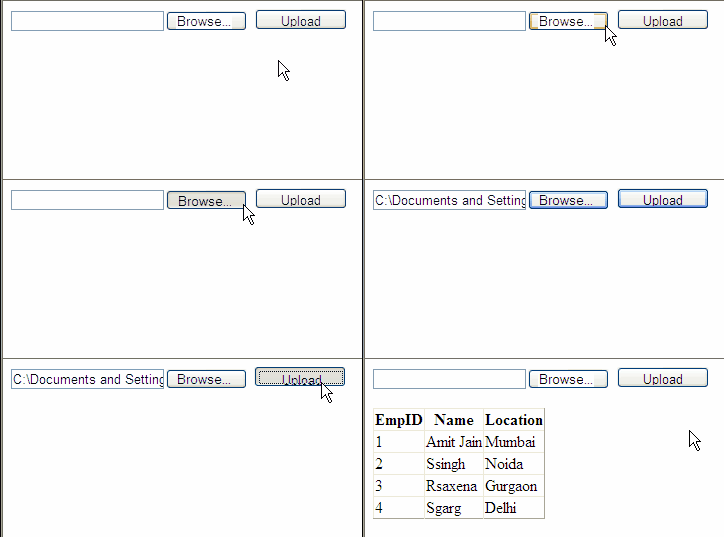
Upload and Read Excel File Data into datatable Asp.Net
First of all put a fileUpload control, and a GridView in design view of aspx page to upload and display excel file data.

Now place a button on the page, in click even of this button we will be uploading the excel file in a folder on server and read it's content.


HTML SOURCE OF PAGE
<form id="form1" runat="server">
<div>
    
<asp:FileUpload ID="FileUpload1" runat="server" />
<asp:Button ID="btnUpload" runat="server" 
            Height="21px" Text="Upload" 
            Width="92px" onclick="btnUpload_Click"/>
</div>
<asp:GridView ID="GridView1" runat="server">
</asp:GridView>
</form>

Add these namespaces in code behind of page

using System.IO;
using System.Data.OleDb;
using System.Data;

Write below mentioned code in Click Event of Upload Button

C# CODE
protected void btnUpload_Click(object sender, EventArgs e)
    {
        string connectionString ="";
        if (FileUpload1.HasFile)
        {
            string fileName = Path.GetFileName(FileUpload1.PostedFile.FileName);
            string fileExtension = Path.GetExtension(FileUpload1.PostedFile.FileName);
            string fileLocation = Server.MapPath("~/App_Data/" + fileName);
            FileUpload1.SaveAs(fileLocation);
            
            //Check whether file extension is xls or xslx

            if (fileExtension == ".xls")
            {
                connectionString = "Provider=Microsoft.Jet.OLEDB.4.0;Data Source=" + fileLocation + ";Extended Properties=\"Excel 8.0;HDR=Yes;IMEX=2\""; 
            }
            else if (fileExtension == ".xlsx")
            {
                connectionString = "Provider=Microsoft.ACE.OLEDB.12.0;Data Source=" + fileLocation + ";Extended Properties=\"Excel 12.0;HDR=Yes;IMEX=2\"";
            }

            //Create OleDB Connection and OleDb Command

            OleDbConnection con = new OleDbConnection(connectionString);
            OleDbCommand cmd = new OleDbCommand();
            cmd.CommandType = System.Data.CommandType.Text;
            cmd.Connection = con;
            OleDbDataAdapter dAdapter = new OleDbDataAdapter(cmd);
            DataTable dtExcelRecords = new DataTable();
            con.Open();
            DataTable dtExcelSheetName = con.GetOleDbSchemaTable(OleDbSchemaGuid.Tables, null);
            string getExcelSheetName = dtExcelSheetName.Rows[0]["Table_Name"].ToString();
            cmd.CommandText = "SELECT * FROM [" + getExcelSheetName +"]";
            dAdapter.SelectCommand = cmd;
            dAdapter.Fill(dtExcelRecords);
            con.Close();
            GridView1.DataSource = dtExcelRecords;
            GridView1.DataBind();
        }
    }

VB.NET CODE

Protected Sub btnUpload_Click(sender As Object, e As EventArgs)
 Dim connectionString As String = ""
 If FileUpload1.HasFile Then
  Dim fileName As String = Path.GetFileName(FileUpload1.PostedFile.FileName)
  Dim fileExtension As String = Path.GetExtension(FileUpload1.PostedFile.FileName)
  Dim fileLocation As String = Server.MapPath("~/App_Data/" & fileName)
  FileUpload1.SaveAs(fileLocation)

  'Check whether file extension is xls or xslx

  If fileExtension = ".xls" Then
   connectionString = "Provider=Microsoft.Jet.OLEDB.4.0;Data Source=" & fileLocation & ";Extended Properties=""Excel 8.0;HDR=Yes;IMEX=2"""
  ElseIf fileExtension = ".xlsx" Then
   connectionString = "Provider=Microsoft.ACE.OLEDB.12.0;Data Source=" & fileLocation & ";Extended Properties=""Excel 12.0;HDR=Yes;IMEX=2"""
  End If

  'Create OleDB Connection and OleDb Command

  Dim con As New OleDbConnection(connectionString)
  Dim cmd As New OleDbCommand()
  cmd.CommandType = System.Data.CommandType.Text
  cmd.Connection = con
  Dim dAdapter As New OleDbDataAdapter(cmd)
  Dim dtExcelRecords As New DataTable()
  con.Open()
  Dim dtExcelSheetName As DataTable = con.GetOleDbSchemaTable(OleDbSchemaGuid.Tables, Nothing)
  Dim getExcelSheetName As String = dtExcelSheetName.Rows(0)("Table_Name").ToString()
  cmd.CommandText = "SELECT * FROM [" & getExcelSheetName & "]"
  dAdapter.SelectCommand = cmd
  dAdapter.Fill(dtExcelRecords)
  con.Close()
  GridView1.DataSource = dtExcelRecords
  GridView1.DataBind()
 End If
End Sub

Build and run the application.


In this code if the excel sheet contains text characters or special characters in numeric field like EmpID, then it's not read by C# or VB.NET and display blank in gridview as shown in Image.

ReadExcel Error
The reason for this is excel doesn't handle mixed data format very well, entry like 1A or 1-A etc doesn't get read by this code.

To fix this error we need to make some changes in connection string of excel, and need to add some extended properties, change the connection string as shown below.


connectionString = "Provider=Microsoft.Jet.OLEDB.4.0;Data Source=" + fileLocation + @";Extended Properties=" + Convert.ToChar(34).ToString() + @"Excel 8.0;Imex=1;HDR=Yes;" + Convert.ToChar(34).ToString();

Now it will read the excel sheet without any errors.


Download Sample Code


2

VisualStudio Setup Project Updates Version Already Installed Error

Visual Studio Setup Project Updates Another Version Of This Product Is Already Installed Error In Windows Forms or WinForms .

Setup Project Another version already installed error

When we make changes or update in windows forms or winforms application and create setup project to reinstall the application, we get below mentioned error.

Another version of this product is already installed. Installation of this version can not continue.
To configure or remove theexisting version of this product use Add/Remove programs on the control panel.


This error comes because of the same product code and version of application already installed.

To get rid of it we need to configure our setup project as mentioned below.

1. Select and highlight your setup project in solution explorer window.

Highlight setupproject

2. press F4 key to open properties window.

Change version of setup project

3. In this window, RemovePreviousVersions property is set to false by default, change it to TRUE.

4. change last digit of version (something like 1.0.11).

Click yes on next confirmation screen.

Now you need to build setup project again

Right click on setup project name and select BUILD.

now try to install the application over existing one and you won''t get the error.


5

Read CSV File And Save To SQL Server In ASP.NET C# VB.NET

Read CSV File or Data In ASP.NET using C# VB.NET And save to MS SQL Server.

In this example i'm explaining how to read CSV file and save data to sql server.

My sql table has 3 columns FirstName,LastName and Department. and i m using datatable to read Data from CSV file and temporarily storing in datatable.

First of all you need to add reference to Microsoft.VisualBasic dll by rightclicking in solution explorer,select add reference and select microsoft.VisualBasic from list.


Add these namespaces in code behind of page.

using System.Data;
using System.Data.SqlClient;
using Microsoft.VisualBasic.FileIO;

Now write below mentioned code in click event of button.

C# CODE
protected void Button1_Click(object sender, EventArgs e)
    {
        DataTable tblReadCSV = new DataTable();

        tblReadCSV.Columns.Add("FirstName");
        tblReadCSV.Columns.Add("LastName");
        tblReadCSV.Columns.Add("Department");

        TextFieldParser csvParser = new TextFieldParser("C:\\test.txt");

        csvParser.Delimiters = new string[] { "," };
        csvParser.TrimWhiteSpace = true;
        csvParser.ReadLine();

        while (!(csvParser.EndOfData == true))
        {
            tblReadCSV.Rows.Add(csvParser.ReadFields());
        }

        //Create SQL Connection, Sql Command and Sql DataAdapter to save CSV data into SQL Server 
        string strCon = ConfigurationManager.ConnectionStrings["testdbConnectionString"].ConnectionString;
        string strSql = "Insert into Employees(FirstName,LastName,Department) values(@Fname,@Lname,@Dept)";
        SqlConnection con = new SqlConnection(strCon);
        SqlCommand cmd = new SqlCommand();
        cmd.CommandType = CommandType.Text;
        cmd.CommandText = strSql;
        cmd.Connection = con;
        cmd.Parameters.Add("@Fname", SqlDbType.VarChar, 50, "FirstName");
        cmd.Parameters.Add("@Lname", SqlDbType.VarChar, 50, "LastName");
        cmd.Parameters.Add("@Dept", SqlDbType.VarChar, 50, "Department");

        SqlDataAdapter dAdapter = new SqlDataAdapter();
        dAdapter.InsertCommand = cmd;
        int result = dAdapter.Update(tblReadCSV);
        
    }

VB.NET CODE
Protected Sub Button1_Click(sender As Object, e As EventArgs)
 Dim tblReadCSV As New DataTable()

 tblReadCSV.Columns.Add("FirstName")
 tblReadCSV.Columns.Add("LastName")
 tblReadCSV.Columns.Add("Department")

 Dim csvParser As New TextFieldParser("C:\test.txt")

 csvParser.Delimiters = New String() {","}
 csvParser.TrimWhiteSpace = True
 csvParser.ReadLine()

 While Not (csvParser.EndOfData = True)
  tblReadCSV.Rows.Add(csvParser.ReadFields())
 End While

 'Create SQL Connection, Sql Command and Sql DataAdapter to save CSV data into SQL Server 
 Dim strCon As String = ConfigurationManager.ConnectionStrings("testdbConnectionString").ConnectionString
 Dim strSql As String = "Insert into Employees(FirstName,LastName,Department) values(@Fname,@Lname,@Dept)"
 Dim con As New SqlConnection(strCon)
 Dim cmd As New SqlCommand()
 cmd.CommandType = CommandType.Text
 cmd.CommandText = strSql
 cmd.Connection = con
 cmd.Parameters.Add("@Fname", SqlDbType.VarChar, 50, "FirstName")
 cmd.Parameters.Add("@Lname", SqlDbType.VarChar, 50, "LastName")
 cmd.Parameters.Add("@Dept", SqlDbType.VarChar, 50, "Department")

 Dim dAdapter As New SqlDataAdapter()
 dAdapter.InsertCommand = cmd
 Dim result As Integer = dAdapter.Update(tblReadCSV)

End Sub

Build and Run the code.

Download Sample Code


3

GridView XMLDataSource Example

GridView XMLDataSource Example. In this post i'm explaining how to use XML file or XML data as XMLDataSource to populate GridView in Asp.Net 2.0,3.5,4.0.

GridView XMLDataSource Example

For this example i have created a simple xml file and added it in App_Data Folder of Asp.Net application.


The data in XML file look like shown below.


Amit Jain Mumbai
user 1 Delhi
User 2 Noida
User 3 Bangalore

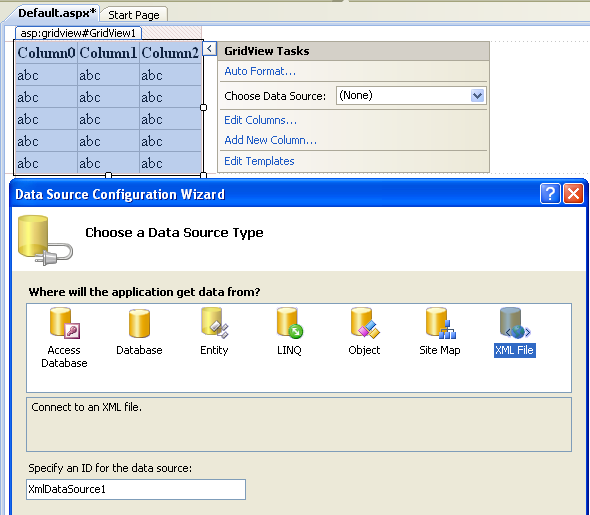
First of All Add a GridView on aspx page and click on smart tag in design view of page and select new data source.
Browse to xml file path and click on ok.

XMLDataSource

When we click on ok we get error as displayed in the image.

XMLDataSource Error

The data source for GridView with id 'GridView1' did not have any properties or attributes from which to generate columns. Ensure that your data source has content.

This error is caused because the XML data is not in the format gridview can read.

GridView needs XML data in below mentioned format.


To fix this error we need to provide XSLT Schema. Right click on solution explorer and select add new item, from new dialog box that opens, select XSLT file.

Now we need to provide XML template in this XSLT file which should look like mentioned below.


HTML Source of GridView
<asp:GridView ID="GridView1" runat="server" 
              AutoGenerateColumns="False" 
              DataSourceID="XmlDataSource1">
<Columns>
<asp:BoundField DataField="FirstName" HeaderText="FirstName" 
                SortExpression="FirstName" />
<asp:BoundField DataField="LastName" HeaderText="LastName" 
                SortExpression="LastName" />
<asp:BoundField DataField="Location" HeaderText="Location" 
                SortExpression="Location" />
</Columns>
</asp:GridView>

<asp:XmlDataSource ID="XmlDataSource1" runat="server" 
                 DataFile="~/App_Data/XMLFile.xml" 
                 TransformFile="~/App_Data/XSLTFile.xslt">
</asp:XmlDataSource>

Build and run the application.

Download Sample Code


0

Add Controls Dynamically WinForms WindowsFroms C# VB.NET

In this post i'm explaining how to Add Controls Dynamically In Winforms Windows Forms Application Using C# And VB.NET

I have used northwind database and Employees table to populate combobox and dataGridView.

Place two buttons on the form to add combobox and datagridview on button click and write below mentioned code in click event of each button respectively.

Add Controls Dynamically in Winforms Windows Forms


C#
private void btnDropDown_Click(object sender, EventArgs e)
        {
            int x = 13, y = 70;
            ComboBox cmbDynamic = new ComboBox();
            cmbDynamic.Location = new System.Drawing.Point(x, y);
            cmbDynamic.Name = "cmbDyn";
            cmbDynamic.DisplayMember = "FirstName";
            cmbDynamic.ValueMember = "EmployeeID";
            cmbDynamic.DataSource = employeesBindingSource;
            Controls.Add(cmbDynamic);
            
            
        }

Here X and Y co-ordinates are used to define at which location the control needs to be placed.

private void btnDataGrid_Click(object sender, EventArgs e)
        {
            int x = 13, y = 100;
            DataGridView gvDynamic = new DataGridView();
            gvDynamic.Location = new System.Drawing.Point(x, y);
            gvDynamic.Name = "gvDyn";
            gvDynamic.Width = 250;
            gvDynamic.Height = 260;
            gvDynamic.DataSource = employeesBindingSource;
            Controls.Add(gvDynamic);
        }

VB.NET
Private Sub btnDropDown_Click(sender As Object, e As EventArgs)
 Dim x As Integer = 13, y As Integer = 70
 Dim cmbDynamic As New ComboBox()
 cmbDynamic.Location = New System.Drawing.Point(x, y)
 cmbDynamic.Name = "cmbDyn"
 cmbDynamic.DisplayMember = "FirstName"
 cmbDynamic.ValueMember = "EmployeeID"
 cmbDynamic.DataSource = employeesBindingSource
 Controls.Add(cmbDynamic)


End Sub

Private Sub btnDataGrid_Click(sender As Object, e As EventArgs)
 Dim x As Integer = 13, y As Integer = 100
 Dim gvDynamic As New DataGridView()
 gvDynamic.Location = New System.Drawing.Point(x, y)
 gvDynamic.Name = "gvDyn"
 gvDynamic.Width = 250
 gvDynamic.Height = 260
 gvDynamic.DataSource = employeesBindingSource
 Controls.Add(gvDynamic)
End Sub


Build and run the code.

3

DataBinder.Eval Container.DataItem Performance Asp.Net

Using DataBinder.Eval Container.DataItem Method Slow Down The Performance Of Asp.Net Web Applications noticeably.

DataBinder.Eval Container.DataItem Performance

It is mentioned in MSDN site as -

"Because this method performs late-bound evaluation, using reflection at run time, it can cause performance to noticeably slow compared to standard ASP.NET data-binding syntax."

So one should avoid using this method as much as possible.


We use DataBinder.Eval method quite frequently in controls like GridView, Detailsview, DataList or Repeater to evaluate data binding expressions at run time because of simplicity like i used for Running Total in GridView.

decimal rowTotal = Convert.ToDecimal
              (DataBinder.Eval(e.Row.DataItem, "Amount"));

Or in General context
<%# DataBinder.Eval (Container.DataItem, "Price") %>


Now as Eval method is performance hungry we can avoid using it by writing code like mentioned below.

<%# ((DataRowView)Container.DataItem)["FirstName"] %>

Casting Container.DataItem as DataRowView explicitly performs better then Using Eval method.


3

AllowDefinition MachineToApplication Beyond Application Level Error

It is an error to use a section registered as allowDefinition ='MachineToApplication' beyond application level.

allowDefinition=MachineToApplication Error

This error can be caused by a virtual directory not being configured as an application in IIS.

This error is caused mainly for two reasons.


1. Virtual directory not configured in IIS.


If you have not Configured your application to run on IIS then Create a virtual directory and assign permissions to Application (Read,Write).

Open IIS manager by typing INETMGR by clicking start menu > Run on windows

This will open IIS manager, now right click on the folder containing ur web application files and select properties.

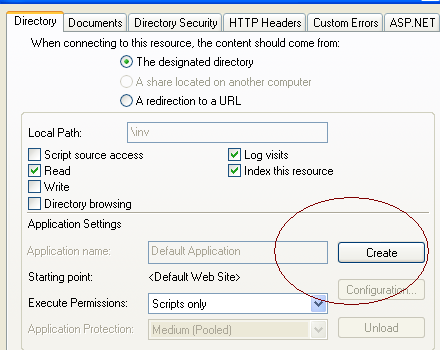
In directory tab click on create button associated with Application name section.

Create Virtual Directory


Click on apply and this should fix the problem.


2. Two or more web.config files.


Chekc whether u r having two or more web.config files in ur application ?

If yes than remove one, web.config file should be in root under virtual directory.

Remove any backup folders if you have which may contain web.config file.


Hope this helps


2

Remove Delete Duplicate Records Or Rows-Sql Server

This post explains how to Remove Delete Duplicate Records Or Rows From Ms Sql Server Database Table.

Different methods of deleting duplicate records.

Delete Duplicate Records In Sql Server
I am using Employees table with FirstName and Department columns.


Remove Duplicate Rows In Sql
First Method.

Delete duplicate records/rows by creating identity column.


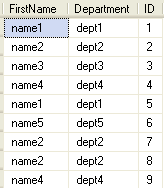
duplicate records in table looks like shown in first image.

First of all we need to create a identity column in our table by using code mentioned below.

And table will look like image on the left.


ALTER TABLE dbo.Employees ADD ID INT IDENTITY(1,1) 

Now write this query to delete duplicate rows.

DELETE FROM dbo.Employees
WHERE ID NOT IN (SELECT MIN(ID)
FROM dbo.Employees GROUP BY FirstName,Department) 

This should remove all duplicate records from table.


Second Method.

Delete duplicate records using Row_Number()


If you do not want to make any changes in table design or don't want to create identity column on table then you can remove duplicate records using Row_Number in sql server 2005 onwards.

for this write below mentioned code and execute.

WITH DuplicateRecords AS
(
SELECT *,row_number() OVER(PARTITION BY FirstName,Department ORDER BY 

FirstName) 
AS RowNumber FROM dbo.Employees
)
DELETE FROM DuplicateRecords WHERE RowNumber>1

This should remove all duplicate records from table.


Third Method.

Remove duplicate rows/Records using temporary table


Use below mentioned code to delete duplicates by moving them to temporary table using DISTINCT.

SELECT DISTINCT * INTO TempTable FROM dbo.Employees
GROUP BY FirstName,Department
HAVING COUNT(FirstName) > 1

DELETE dbo.Employees WHERE FirstName
IN (SELECT FirstName FROM TempTable)

INSERT dbo.Employees SELECT * FROM TempTable
DROP TABLE TempTable


Remove delete Duplicate Rows In Sql
And result will be as shown.

Have fun.


Find More Articles