Showing posts with label IIS. Show all posts
2

Publish Deploy Asp.Net WebSite Application On IIS7 Server

This post explains how to Publish And Deploy Asp.Net Web Site Application On IIS7 Server.

Open Application in Visual Studio, Click on Build > Publish Web Site.


Publish Asp.Net Web Site Application In Visual Studio


Browse to where you want to save published DLLs,Files and other aspx pages. (TestWebSite)


Deploy Asp.Net WebSite On IIS Server


Copy TestWebSite folder inside C:\inetpub/wwwroot directory.


Click on Start Menu > Run > INETMGR to open IIS manager.

Click on sites > Default Web Site.

Right Click on folder we copied and Select Convert To Application.


Create new pool by right clicking on Application pools.


Create Application Pool On IIS


Go to Advance settings


Change Identity property to Local System.


Right Click On TestWebSite Application > Manage Application > Advance Settings.


Assign Application Pool we created earlier to this web App.


Open Internet browser and type http://localhost/testwebsite to browse your website application.


Hope this helps.

3

AllowDefinition MachineToApplication Beyond Application Level Error

It is an error to use a section registered as allowDefinition ='MachineToApplication' beyond application level.

allowDefinition=MachineToApplication Error

This error can be caused by a virtual directory not being configured as an application in IIS.

This error is caused mainly for two reasons.


1. Virtual directory not configured in IIS.


If you have not Configured your application to run on IIS then Create a virtual directory and assign permissions to Application (Read,Write).

Open IIS manager by typing INETMGR by clicking start menu > Run on windows

This will open IIS manager, now right click on the folder containing ur web application files and select properties.

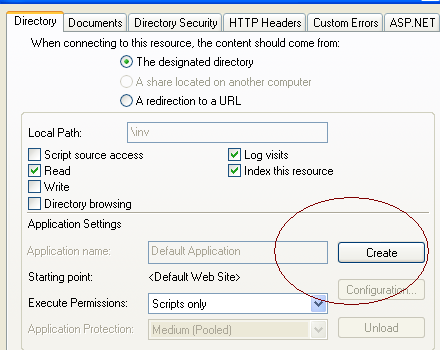
In directory tab click on create button associated with Application name section.

Create Virtual Directory


Click on apply and this should fix the problem.


2. Two or more web.config files.


Chekc whether u r having two or more web.config files in ur application ?

If yes than remove one, web.config file should be in root under virtual directory.

Remove any backup folders if you have which may contain web.config file.


Hope this helps


2

Add Expires Headers In Asp.NET

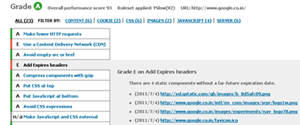
Add Expires Headers In Asp.NET 2.0,3.5,4.0 Using C# And VB.NET. In this example i am Explaining how to add or set expires headers for static files or images in asp.net 2.0, 3.5

Performance is the main concern for any asp.net web application and bit of this can be achieved by setting expires headers for static files and images which doesn't change too often.

Add Expires Headers In asp.net 2.0 3.5


when expires headers are set for a future date or to never expires then browser fetch these files from cache and doesn't need to download these files every time application is loaded in browser, hence site or application is loaded faster


To do this we need to add code mentioned below in web.config file of asp.net web application

Set Expires headers to future date

<configuration>
    <system.webserver>
        <staticcontent>
            <clientcache cachecontrolcustom="" cachecontrolmode="UseExpires" httpexpires="Thu, 31 Dec 2020 00:00:00 GMT">
        </clientcache></staticcontent>
    </system.webserver>
</configuration>

Add headers to expire after certain days

<configuration>
  <system.webserver>
    <staticcontent>
      <clientcache cachecontrolmaxage="150.00:00:00" cachecontrolmode="UseMaxAge">
    </clientcache></staticcontent>
  </system.webserver>
</configuration>

Now the file headers will expire after 150 days


Hope this helps


70

Failed to access IIS metabase ASP.NET

Failed To Access IIS Metabase Error In ASP.NET, If You are getting "Failed to access IIS metabase" error while browsing asp.net site or aspx page in IIS server then you may have installed IIS Server after installing the .NET framework.

If that's the case, try running to repair your ASP.NET installation and set up all of the appropriate ISAPI extension mappings.

Open visual studio command prompt and type this command

aspnet_regiis -ga \username
username is usually aspnet


if this doesn't work than use this command
aspnet_regiis -i

alternatively you can copy and paste this command into windows command prompt

%windir%\Microsoft.NET\Framework\v2.0.50727\aspnet_regiis.exe -i

this will fix your problem


Find More Articles