Showing posts with label ObjectDataSource. Show all posts
2

ObjectDataSource Examples With GridView In ASP.NET

GridView With ObjectDataSource Examples In Asp.Net 2.0 and 3.5 with UpdateMethod, InsertMethod and Select Method  using C# csharp and VB.NET.

Here i have compiled list of few examples of ObjectDataSource to populate or bind gridview i posted earlier in this blog.


GridView With ObjectDataSource Examples In Asp.Net
Hide GridView Columns In ASP.NET


Images in Gridview/DataList using Objectdatasource


Insert Edit Update GridView with ObjectDataSource


Hope this helps

3

Images In Gridview DataList Using ObjectDataSource

In this example i am explaining how to Add or Show Images in GridView or DataList using ObjectDataSource In Asp.Net C# VB.NET. For this first of all we need to create a Object to populate gridview or DataList.

Right click on solution explorer and add new class, name it whatever you want to.

Images In Gridview DataList Using ObjectDataSource


In this class write a method to populate GridView, i'm creating a DataTable and adding some records.

The C# code behind

public DataTable GetData()
{
  DataTable dt = new DataTable();
  dt.Columns.Add(new DataColumn
                ("PictureID", typeof(int)));
  dt.Columns.Add(new DataColumn
                ("PictureURL", typeof(string)));
  dt.Columns.Add(new DataColumn
                ("Title", typeof(string)));

        DataRow dr = dt.NewRow();
        dr["PictureID"] = 1;
        dr["PictureURL"] = ResolveUrl
                ("~/Images/Ball1.gif");
        dr["Title"] = "FootBall";
        dt.Rows.Add(dr);

        dr = dt.NewRow();
        dr["PictureID"] = 2;
        dr["PictureURL"] = "~/Images/Mobiles.jpg";
        dr["Title"] = "Mobile Phones";
        dt.Rows.Add(dr);

        dr = dt.NewRow();
        dr["PictureID"] = 3;
        dr["PictureURL"] = "~/Images/Watch.jpg";
        dr["Title"] = "Watches";
        dt.Rows.Add(dr);

        dr = dt.NewRow();
        dr["PictureID"] = 4;
        dr["PictureURL"] = "~/Images/Perfumes.jpg";
        dr["Title"] = "Perfumes";
        dt.Rows.Add(dr);
        return dt;
    }

VB.NET code behind
Public Function GetData() As DataTable
    Dim dt As New DataTable()
    dt.Columns.Add(New DataColumn("PictureID", GetType(Integer)))
    dt.Columns.Add(New DataColumn("PictureURL", GetType(String)))
    dt.Columns.Add(New DataColumn("Title", GetType(String)))
    
    Dim dr As DataRow = dt.NewRow()
    dr("PictureID") = 1
    dr("PictureURL") = ResolveUrl("~/Images/Ball1.gif")
    dr("Title") = "FootBall"
    dt.Rows.Add(dr)
    
    dr = dt.NewRow()
    dr("PictureID") = 2
    dr("PictureURL") = "~/Images/Mobiles.jpg"
    dr("Title") = "Mobile Phones"
    dt.Rows.Add(dr)
    
    dr = dt.NewRow()
    dr("PictureID") = 3
    dr("PictureURL") = "~/Images/Watch.jpg"
    dr("Title") = "Watches"
    dt.Rows.Add(dr)
    
    dr = dt.NewRow()
    dr("PictureID") = 4
    dr("PictureURL") = "~/Images/Perfumes.jpg"
    dr("Title") = "Perfumes"
    dt.Rows.Add(dr)
    Return dt
End Function

Now go to design view of the page and drag a GridView from toolbox.

Steps to create ObjectDataSource

Click on smart tag of gridview and select Choose Data Source > New DataSource

From next screen select Object, Click on OK
In next screen, choose your Object (the class file we created earlier )_ from the dropdown, Click on next.

In define data methods screen, choose your method for select statement you wrote in the class file(in our case it is GetData(),Return DataTable), Click on finish.


Now click on smart tag of GridView and Click on Edit Columns.

Uncheck the Auto-Generate field checkBox at bottom left of screen.


From the box at top left add two BoundField and 1 ImageField as shown in figure
Select first Bound field and change HeaderText property to "Picture ID" and DataField property to PictureID.


Repeat same for second bound field and for Title.
Select the ImageField and set DataImageUrlField property to PictureURL.

Complete HTML source of page will look like this
<asp:GridView ID="GridView1" Runat="server" 
              AutoGenerateColumns="False" 
              BorderWidth="1px" CellPadding="3" 
              BorderStyle="None" 
              BorderColor="#CCCCCC" 
              DataSourceID="ObjectDataSource1" 
              AllowPaging="True" PageSize=3>
<PagerStyle ForeColor="#000066" HorizontalAlign="Left" 
            BackColor="White">
</PagerStyle>
<HeaderStyle ForeColor="White" Font-Bold="True" 
             BackColor="#006699">
</HeaderStyle>
<Columns>
<asp:BoundField HeaderText="Picutre ID" 
                DataField="PictureID">
<ItemStyle HorizontalAlign="Center" 
           VerticalAlign="Middle">
</ItemStyle>
</asp:BoundField>
<asp:BoundField HeaderText="Title" DataField="Title">
</asp:BoundField>
<asp:ImageField DataImageUrlField="PictureURL">
</asp:ImageField>
</Columns>
<SelectedRowStyle ForeColor="White" Font-Bold="True" 
                  BackColor="#669999"></SelectedRowStyle>
<RowStyle ForeColor="#000066"></RowStyle>
</asp:GridView>
<asp:ObjectDataSource ID="ObjectDataSource1" 
                      runat="server" 
                      SelectMethod="GetData"
                      TypeName="ImagesInGridView">
</asp:ObjectDataSource>

Now save the project, build it and run it.

Hope this helps

Related Posts:
Insert Delete Edit Update GridView with ObjectDataSource

Insert Edit Delete record in GridView using SqlDataSource ItemTemplate and EditItemTemplate

Edit or update multiple records/rows in gridview with checkbox

Delete multiple rows in Gridview with checkbox and delete confirmation Javascript

Add Auto Number Column in GridView or DataList

9

GridView With ObjectDataSource Example Insert Edit Update

In this example i am explaining how to Insert Edit Update GridView With ObjectDataSource In Asp.Net 2.0,3.5,4.0. For this i've created a simple database with a table named Details having 3 columns ID,Name and Location.

Open Visual studio and create a new website. Now right click on solution explorer and select add new Item > Sql Database > name it DataBase.mdf

Create a table with columns i mentioned above in this Database.

Right click on Solution explorer and Select add new Item > choose DataSet from the dialog box

To learn how to configure database connection and connection string for this example read my article
Insert Edit Delete record in GridView using SqlDataSource ItemTemplate and EditItemTemplate


Right click on DataSet designer window and select Add > Table Adapter 


Follow the steps according to images


Use query builder to create sql statements or write ur own

Now Right click on TableAdapter and add Query for Update statement , choose Update radio button in next dialog box
Write your Update Statement


Click on finish and save the solution 

Now go to toolbox and drag a GridView on the design view of page.
Click on smart tag of GridView and choose new DataSource > Select ObjectDataSource

Select tableAdapter from the dropdown menu


Assign methods for select and update command in next dialog box


 Save the solution 


Now go to html markup of the page and change the html code of gridview according to code written below to implement ItemTemplate and EditItemTemplate

I'm using Bind method in EditItemTemplate of GridView so we do not need to write and code in CodeBehind

The html source of page should look like


<div>
<asp:GridView ID="GridView1" runat="server" 
                             AutoGenerateColumns="False" 
                             DataSourceID="ObjectDataSource1">
          
     <Columns>
     <asp:CommandField ShowEditButton="true" />
     <asp:TemplateField HeaderText="ID" SortExpression="ID">
     <EditItemTemplate>
     <asp:TextBox ID="txtID" runat="server" ReadOnly="true" 
                  Text='<%# Bind("ID") %>'>
     </asp:TextBox>
     </EditItemTemplate>       
     <ItemTemplate>
     <asp:Label ID="lblID" runat="server" BackColor="AliceBlue" 
                Text='<%# Eval("ID") %>'>
     </asp:Label>
     </ItemTemplate>
     </asp:TemplateField>
     
     <asp:TemplateField HeaderText="Name" SortExpression="Name">
     <EditItemTemplate>
     <asp:TextBox ID="txtName" runat="server" 
                  Text='<%# Bind("Name") %>'>
     </asp:TextBox>
     </EditItemTemplate>
     <ItemTemplate>
     <asp:Label ID="lblName" runat="server" BackColor="AliceBlue" 
                Text='<%# Eval("Name") %>'>
     </asp:Label>
     </ItemTemplate>
     </asp:TemplateField>
     
     <asp:TemplateField HeaderText="Locaton" 
                        SortExpression="Location">
     <EditItemTemplate>
     <asp:TextBox ID="txtLocation" runat="server" 
                  Text='<%# Bind("Location") %>'>
     </asp:TextBox>
     </EditItemTemplate>
     <ItemTemplate>
     <asp:Label ID="lblLocation" runat="server" BackColor="AliceBlue" 
                Text='<%# Eval("Location") %>'>
     </asp:Label>
     </ItemTemplate>
     </asp:TemplateField>
     <asp:TemplateField>
     </Columns>
</asp:GridView>
     
<asp:ObjectDataSource ID="ObjectDataSource1" runat="server" 
     InsertMethod="Insert" 
     OldValuesParameterFormatString="original_{0}" 
     
     SelectMethod="GetData" 
          TypeName="DataSet1TableAdapters.DetailsTableAdapter" 
     UpdateMethod="UpdateQuery">
            <UpdateParameters>
                <asp:Parameter Name="Name" Type="String" />
                <asp:Parameter Name="Location" Type="String" />
                <asp:Parameter Name="ID" Type="Decimal" />
            </UpdateParameters>
            <InsertParameters>
                <asp:Parameter Name="ID" Type="Decimal" />
                <asp:Parameter Name="Name" Type="String" />
                <asp:Parameter Name="Location" Type="String" />
            </InsertParameters>
        </asp:ObjectDataSource>
    </div>

Save,build and run the application

Hope this helps

Download sample code attached


Related posts:
Insert Edit Delete record in GridView using SqlDataSource

ASP.NET Edit or update multiple records/rows in gridview with checkbox

Delete multiple rows records in Gridview with checkbox and confirmation

16

Hide GridView Columns In ASP.NET

This example shows how to Hide GridView Columns in normal mode in asp.net and set them to visible when gridview is in edit mode. I am hiding the ID column when gridview loads and setting this column to visible when user clicks on the edit link button.

For this i am using ObjectDataSource to populate the grid and hiding columns in RowDataBound Event.

Hide GridView Columns In ASP.NET


<asp:GridView ID="GridView1" runat="server"
              AutoGenerateColumns="False"
              DataSourceID="ObjectDataSource1"
              OnRowDataBound="GridView1_RowDataBound"
              OnRowEditing="GridView1_RowEditing">
<Columns>
<asp:CommandField ShowEditButton="true"/>
 
<asp:TemplateField HeaderText="ID">
<ItemTemplate>
<asp:Label ID="lblID" runat="server" Text='<%#Eval("ID")%>'/>
</ItemTemplate>
<EditItemTemplate >
<asp:TextBox ID="txtID" Visible="true" runat="server"
             Text='<%#Eval("ID")%>'/>
</EditItemTemplate>
</asp:TemplateField>
 
<asp:TemplateField HeaderText="Name">
<ItemTemplate>
<asp:Label ID="lblName" runat="server" Text='<%#Eval("Name")%>'/>
</ItemTemplate>
<EditItemTemplate >
<asp:TextBox ID="txtName" Visible="true" runat="server"
             Text='<%#Eval("Name")%>'/>
</EditItemTemplate>
</asp:TemplateField>
 
<asp:TemplateField HeaderText="Location">
<ItemTemplate>
<asp:Label ID="lblLocation" runat="server" 
           Text='<%#Eval("Location")%>'/>
</ItemTemplate>
<EditItemTemplate >
<asp:TextBox ID="txtLocation" Visible="true" runat="server"
             Text='<%#Eval("Location")%>'/>
</EditItemTemplate>
</asp:TemplateField>
</Columns>
</asp:GridView>
 
<asp:ObjectDataSource ID="ObjectDataSource1" runat="server"
                      InsertMethod="Insert"
                      OldValuesParameterFormatString="original_{0}"
                      SelectMethod="GetData"
                      TypeName="DataSet1TableAdapters.TestTableAdapter"
                      UpdateMethod="UpdateQuery">
<InsertParameters>
<asp:Parameter Name="ID" Type="Decimal" />
<asp:Parameter Name="Name" Type="String" />
<asp:Parameter Name="Location" Type="String" />
</InsertParameters>
<UpdateParameters>
<asp:Parameter Name="Name" Type="String" />
<asp:Parameter Name="Location" Type="String" />
<asp:Parameter Name="ID" Type="Decimal" />
</UpdateParameters>
</asp:ObjectDataSource>
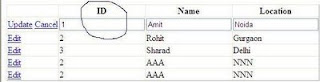

We need to write following code to hide columns in RowDataBound event

C# CODE
protected void GridView1_RowDataBound(object sender, GridViewRowEventArgs e)
    {
        //Check whether gridview is in edit mode or nor 
        if (GridView1.EditIndex >= 0)
        { return; }
        //Check row state of gridview whether it is data row or not
        if ((e.Row.RowState == DataControlRowState.Normal
        || e.Row.RowState == DataControlRowState.Alternate)
        && (e.Row.RowType == DataControlRowType.DataRow
        || e.Row.RowType == DataControlRowType.Header))
        {
            //Now set the visibility of cell we want to hide to false 
            e.Row.Cells[1].Visible = false;
        }
    }

    protected void GridView1_RowEditing(object sender, GridViewEditEventArgs e)
    {
        GridView1.EditIndex = e.NewEditIndex;
        GridView1.DataBind();
    }

VB.NET
Protected Sub GridView1_RowDataBound(sender As Object, e As GridViewRowEventArgs)
 'Check whether gridview is in edit mode or nor 
 If GridView1.EditIndex >= 0 Then
  Return
 End If
 'Check row state of gridview whether it is data row or not
 If (e.Row.RowState = DataControlRowState.Normal OrElse e.Row.RowState = DataControlRowState.Alternate) AndAlso (e.Row.RowType = DataControlRowType.DataRow OrElse e.Row.RowType = DataControlRowType.Header) Then
  'Now set the visibility of cell we want to hide to false 
  e.Row.Cells(1).Visible = False
 End If
End Sub

Protected Sub GridView1_RowEditing(sender As Object, e As GridViewEditEventArgs)
 GridView1.EditIndex = e.NewEditIndex
 GridView1.DataBind()
End Sub


Download Sample Code


Find More Articles