Showing posts with label Performance Optimization. Show all posts
1

Visual Studio Remove Unused References With Organize Usings

Remove Unused References In Visual Studio By Organize Usings Command For C# VB.NET COde Behind

When we create a new website or project in visual studio, several namespace references are added in code behind by default.

Visual studio Remove unused references using organize using

It's always advisable to remove all unused usings and references from code behind for better performance.

We can follow steps mentioned below to remove all unused usings and references.

FOR C# APPLICATIONS OR PROJECTS

Open code behind of the page u want to remove unused references,
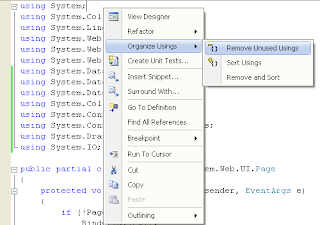
Right click > Organize Usings > Remove Unused Usings


All unused usings will be removed as shown below.


FOR VB.NET APPLICATIONS

Right click on My Project in solution explorer > Select Open.


Select References tab and click on unused references button.


Check the check box for references you want to remove and click on remove.


Hope this helps.


3

DataBinder.Eval Container.DataItem Performance Asp.Net

Using DataBinder.Eval Container.DataItem Method Slow Down The Performance Of Asp.Net Web Applications noticeably.

DataBinder.Eval Container.DataItem Performance

It is mentioned in MSDN site as -

"Because this method performs late-bound evaluation, using reflection at run time, it can cause performance to noticeably slow compared to standard ASP.NET data-binding syntax."

So one should avoid using this method as much as possible.


We use DataBinder.Eval method quite frequently in controls like GridView, Detailsview, DataList or Repeater to evaluate data binding expressions at run time because of simplicity like i used for Running Total in GridView.

decimal rowTotal = Convert.ToDecimal
              (DataBinder.Eval(e.Row.DataItem, "Amount"));

Or in General context
<%# DataBinder.Eval (Container.DataItem, "Price") %>


Now as Eval method is performance hungry we can avoid using it by writing code like mentioned below.

<%# ((DataRowView)Container.DataItem)["FirstName"] %>

Casting Container.DataItem as DataRowView explicitly performs better then Using Eval method.


1

Windows AppFabric Caching for SessionState Provider ASP.NET

Using Windows Server AppFabric Caching Session State Provider For Asp.Net 3.5 And 4.0. In ASP.NET 4 we have following options to choose and use for managing session state,

Windows Server AppFabric Caching Session State Provider
1. In-Proc

2. SQL Server Mode

3. Custom


We can use custom session state mode to store session state in AppFabric cache.

To use AppFabric cache for session state we need to configure our application's web.config file according to steps mentioned below.

First of all make sure Windows Server AppFabric is installed and running.


Read install and configure windows server AppFabric to know how to install and configure windows server AppFabric.

Now add references to the following assemblies by right clicking on solution explorer and select add reference.

browse to AppFabric directory in windows/system32, select and add reference to both assemblies mentioned below.

Microsoft.ApplicationServer.Caching.Client.dll 
Microsoft.ApplicationServer.Caching.Core.dll

Now open web.config file and add following in configSection


Make sure to change your HOSTNAME in code below.


Add this code inside system.web element in web.config

Make sure you write the correct cache name, i m using default cache.


Now we can use AppFabric cache to store our session state as we used to do normally.

protected void Page_Load(object sender, EventArgs e)
{
    // Just and example of storing data in session variables

    Session["Test"] = "AppFabricTest";
   
}

protected void btnTest_Click(object sender, EventArgs e)
{
     lblShow.Text = Session["Test"].ToString(); 
}

0

Sql Query Optimization

Sql Query Optimization in MS SQL Server To Improve Performance of ASP.NET web applications.

Data retrieval FROM database in asp.net applications is a most common task and writing optimized queries can have a huge impact on perfirmance of application if database is huge or containing thousands of records in table.

Here i am mentioning few tips to remember while writing sql queries for optimal performance.

1. Use columns name instead of * in SELECT statements.

Use:

SELECT column1,column2,column3 FROM TableName

Insted of 

SELECT * FROM TableName

by doing so we reduce 1 extra step of converting * into column names by sql server when query is processed.


2. Always create primary key in table.

Making primary key in table ensures that table has a clustered index created.
By doing this SELECT statements using the primary key will make data retrieval very fast because of clustered index on it.


3. Create non-clustered indexes on columns

Columns frequently used in search criteria,joins,foreign keys or used in ORDER BY clause should have index on.

the following query perform better if it has index on column department.

SELECT firstname,lastname FROM Employee 
WHERE department ='HR'


4. Avoid using function calls in queries.

function calls prevent sql server to use indexes.

SELECT OrderId,Amount FROM Orders 
WHERE OrderDate > GetDate()

In this query despite of having index on OrderDate, a full table scan will be performed to search each and every record of table because of function call, hence no advantage of indexes and a huge loss in performance.

better solution for this query would be to avoid calling get date in query like this

Declare @DTime DateTime Set @DTime = GetDate()
SELECT OrderId,Amount FROM Orders 
WHERE OrderDate > @DTime


5. avoid using COUNT() in a query to check existance of record.


COUNT() counts all matching values by doing a table scan.
In case of EXISTS,When it finds the first matching value, it returns TRUE and stops.

SELECT column1 FROM TableName WHERE 0 < (SELECT count(*) FROM TableName2 WHERE condition)
better solution would be:
SELECT column1 FROM TableName WHERE EXISTS (SELECT * FROM TableName2 WHERE condition)


6. Always try to use joins on indexed fields.

7. Avoid triggers as much as possible.

8. Use table variables insted of temporary tables.

Table variables reside in memory while temporary tables reside in the TempDb database So temporary tables require interaction with tempdb database.

9. Use UNION ALL instead of Using UNION.

UNION ALL is faster than UNION as it does not sort the result set for distinguished value.

10. Avoid using Cursors if we need records one by one, use while loop insted.

11. Avoid HAVING clause as it is just like filter after after all rows are SELECTed.

12. Use WHERE clause to narrow the search criteria and to reduce number of records returned in SELECT statment.

13. Use TOP keyword if we want TOP N records in SELECT statement.

and last but not the least

14. Use stored procedure instead of text queries.

In stored procedures

1. Always use object name with schema this helps in directly finding the compiled plan insted of searching other objects

Use:
SELECT * FROM dbo.TableName

insted of 

SELECT * FROM TableName


2. Use SET NOCOUNT ON

sql server returns number of rows effected in any SELECT or DML statement and we can reduce this step by setting NOCOUNT ON like this

CREATE PROC dbo.MyProc
AS
SET NOCOUNT ON;


1

Install Configure Windows Server AppFabric

Install Configure Windows Server AppFabric Cache Services In Asp.Net 3.5 and 4.0.

Install Windows Server Appfabric
Here i am explaining steps to install and configure windows server appfabric cache services in asp.net 3.5 and 4.0.

1. Download and run windows server appfabric from this link

Select the features you want to install, Confirm the next screen and finish the installation.


Install AppFabric

After installation is finished, Go start > all programs> windows server AppFabric and launch configure AppFabric

ConfigureAppFabric

Click on caching service tab and configure it as shown in picture.

Configure windows server appfabric

Windows server AppFabric


Once configuration is done, you need to start the cache services.

For this open Caching Administration Windows PowerShell from the Appfabric menu and type and run below mentiond command.

C:\> Start-CacheCluster

HostName : CachePort Service Name Service Status Version Info
-------------------- ------------ -------------- ------------
AMIT:22233 AppFabricCachingService UP 1 [1,1][1,1]


Now cache services are up and running.

You can change the startup type of cache services to automatic from MMC snap add in.


Hope this helps


2

Add Expires Headers In Asp.NET

Add Expires Headers In Asp.NET 2.0,3.5,4.0 Using C# And VB.NET. In this example i am Explaining how to add or set expires headers for static files or images in asp.net 2.0, 3.5

Performance is the main concern for any asp.net web application and bit of this can be achieved by setting expires headers for static files and images which doesn't change too often.

Add Expires Headers In asp.net 2.0 3.5


when expires headers are set for a future date or to never expires then browser fetch these files from cache and doesn't need to download these files every time application is loaded in browser, hence site or application is loaded faster


To do this we need to add code mentioned below in web.config file of asp.net web application

Set Expires headers to future date

<configuration>
    <system.webserver>
        <staticcontent>
            <clientcache cachecontrolcustom="" cachecontrolmode="UseExpires" httpexpires="Thu, 31 Dec 2020 00:00:00 GMT">
        </clientcache></staticcontent>
    </system.webserver>
</configuration>

Add headers to expire after certain days

<configuration>
  <system.webserver>
    <staticcontent>
      <clientcache cachecontrolmaxage="150.00:00:00" cachecontrolmode="UseMaxAge">
    </clientcache></staticcontent>
  </system.webserver>
</configuration>

Now the file headers will expire after 150 days


Hope this helps


Find More Articles