3

Numeric Number Only TextBox JavaScript RegularExpression Validator

In this example i am explaining how to create Numeric Number Only Textbox Using JavaScript Or Regular Expression Validator which accept only numbers in asp.net web page.


Number only textbox using javascript or regularexpressionvalidator


1. Number only textbox using javascript.
Go to html source of aspx page and write below mentioned script in head section of page.


Call this function in onKeyPress event of textbox.
Write this code in html source of textbox.

<asp:TextBox ID="TextBox2" runat="server" 
             onKeyPress="return numberOnlyExample();">
</asp:TextBox>


We can also do this programmetically in code behind like this.

on Page_Load event of page add onKeyPress attribute to textbox and call the function to accept only numerics.

protected void Page_Load(object sender, EventArgs e)
    {
       TextBox2.Attributes.Add("onkeypress", "return ((window.event.keyCode >= 48 && window.event.keyCode <= 58))");
    }


2. Creating Numeric or Number only textbox using Regular Expression Validator.
Drag and place RegularExpressionValidator control on aspx page and set it's properties as mentioned below in html code.

Set ControlToValidate property to textbox1.
Set ValidationExpression.
Set ErrorMessage.


HTML Source
<asp:RegularExpressionValidator 
     ID="RegularExpressionValidator1" 
     runat="server" 
     ControlToValidate="TextBox1"
     ErrorMessage="Please Enter only Numbers" 
     ValidationExpression="\d+">
</asp:RegularExpressionValidator>
Hope this helps

0

ErrorProvider In WinForms And Windows Forms

ErrorProvider In WinForms or Windows Forms Application Using C# And VB.NET

In this post i am going to describe how to use error provider control in winforms or windows forms application using C# and VB.NET.

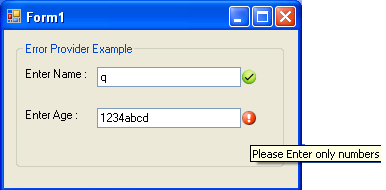
ErrorProvider in winforms and windows forms applications
I am using error provider control to display warning or tick icon depending on data entered in textbox so that user can find out text entered is correct or incorrect.

in first textbox i am just checking whether it's empty or not.

Second textbox is numeric only, user can enter only numbers in this and if anything other than number is entered, error provider will show warning icon beside textbox with tooltip containing suggestion.
I have used regular expression to check textbox text for numbers.


For this i have created a simple winform application with 2 textbox on windows forms. follow steps mentioned below for this example.

1. Create new windows application in visual studio.

2. On the form place 2 textbox and 2 errorprovider control from toolbox.

I m using 2 errorproviders, one to display warning icon and other to displat tick or success icon.


Add this namespace in code behind of form to use regex.
using System.Text.RegularExpressions;

now generate Validated or Validating event for both textboxes by opening property windows of textbox and clicking on lightning icon (Events) at the top of window. from there scroll to bottom and double click on validating. it will generate validating event for textbox in code behind.

Write code mentioned below in events generated.

C# code

private void textBox1_Validating(object sender, CancelEventArgs e)  
        {
            if (textBox1.Text == string.Empty)
            {
                errorProvider1.SetError(textBox1, "Please Enter Name");
                errorProvider2.SetError(textBox1, "");
            }
            else
            {
                errorProvider1.SetError(textBox1, "");
                errorProvider2.SetError(textBox1, "correct");
            }
        }

        private void textBox2_Validated(object sender, EventArgs e)
            {
            if (textBox2.Text == string.Empty)
            {
                errorProvider1.SetError(textBox2, "please enter age");
                errorProvider2.SetError(textBox2, "");
            }
            else
            {
                Regex NumericOnly;
                NumericOnly = new Regex(@"^([0-9]*|\d*)$");
                if (NumericOnly.IsMatch(textBox2.Text))
                {
                    errorProvider1.SetError(textBox2, "");
                    errorProvider2.SetError(textBox2, "correct");
                }
                else
                {
                    errorProvider1.SetError(textBox2, "Please Enter only numbers");
                    errorProvider2.SetError(textBox2, "");
                }
            }
        }

VB.NET Code

Private Sub textBox1_Validating(sender As Object, e As CancelEventArgs)
 If textBox1.Text = String.Empty Then
  errorProvider1.SetError(textBox1, "Please Enter Name")
  errorProvider2.SetError(textBox1, "")
 Else
  errorProvider1.SetError(textBox1, "")
  errorProvider2.SetError(textBox1, "correct")
 End If
End Sub

Private Sub textBox2_Validated(sender As Object, e As EventArgs)
 If textBox2.Text = String.Empty Then
  errorProvider1.SetError(textBox2, "please enter age")
  errorProvider2.SetError(textBox2, "")
 Else
  Dim NumericOnly As Regex
  NumericOnly = New Regex("^([0-9]*|\d*)$")
  If NumericOnly.IsMatch(textBox2.Text) Then
   errorProvider1.SetError(textBox2, "")
   errorProvider2.SetError(textBox2, "correct")
  Else
   errorProvider1.SetError(textBox2, "Please Enter only numbers")
   errorProvider2.SetError(textBox2, "")
  End If
 End If
End Sub

Build and run the application.


Download Sample Code


1

Windows AppFabric Caching for SessionState Provider ASP.NET

Using Windows Server AppFabric Caching Session State Provider For Asp.Net 3.5 And 4.0. In ASP.NET 4 we have following options to choose and use for managing session state,

Windows Server AppFabric Caching Session State Provider
1. In-Proc

2. SQL Server Mode

3. Custom


We can use custom session state mode to store session state in AppFabric cache.

To use AppFabric cache for session state we need to configure our application's web.config file according to steps mentioned below.

First of all make sure Windows Server AppFabric is installed and running.


Read install and configure windows server AppFabric to know how to install and configure windows server AppFabric.

Now add references to the following assemblies by right clicking on solution explorer and select add reference.

browse to AppFabric directory in windows/system32, select and add reference to both assemblies mentioned below.

Microsoft.ApplicationServer.Caching.Client.dll 
Microsoft.ApplicationServer.Caching.Core.dll

Now open web.config file and add following in configSection


Make sure to change your HOSTNAME in code below.


Add this code inside system.web element in web.config

Make sure you write the correct cache name, i m using default cache.


Now we can use AppFabric cache to store our session state as we used to do normally.

protected void Page_Load(object sender, EventArgs e)
{
    // Just and example of storing data in session variables

    Session["Test"] = "AppFabricTest";
   
}

protected void btnTest_Click(object sender, EventArgs e)
{
     lblShow.Text = Session["Test"].ToString(); 
}

0

Sql Query Optimization

Sql Query Optimization in MS SQL Server To Improve Performance of ASP.NET web applications.

Data retrieval FROM database in asp.net applications is a most common task and writing optimized queries can have a huge impact on perfirmance of application if database is huge or containing thousands of records in table.

Here i am mentioning few tips to remember while writing sql queries for optimal performance.

1. Use columns name instead of * in SELECT statements.

Use:

SELECT column1,column2,column3 FROM TableName

Insted of 

SELECT * FROM TableName

by doing so we reduce 1 extra step of converting * into column names by sql server when query is processed.


2. Always create primary key in table.

Making primary key in table ensures that table has a clustered index created.
By doing this SELECT statements using the primary key will make data retrieval very fast because of clustered index on it.


3. Create non-clustered indexes on columns

Columns frequently used in search criteria,joins,foreign keys or used in ORDER BY clause should have index on.

the following query perform better if it has index on column department.

SELECT firstname,lastname FROM Employee 
WHERE department ='HR'


4. Avoid using function calls in queries.

function calls prevent sql server to use indexes.

SELECT OrderId,Amount FROM Orders 
WHERE OrderDate > GetDate()

In this query despite of having index on OrderDate, a full table scan will be performed to search each and every record of table because of function call, hence no advantage of indexes and a huge loss in performance.

better solution for this query would be to avoid calling get date in query like this

Declare @DTime DateTime Set @DTime = GetDate()
SELECT OrderId,Amount FROM Orders 
WHERE OrderDate > @DTime


5. avoid using COUNT() in a query to check existance of record.


COUNT() counts all matching values by doing a table scan.
In case of EXISTS,When it finds the first matching value, it returns TRUE and stops.

SELECT column1 FROM TableName WHERE 0 < (SELECT count(*) FROM TableName2 WHERE condition)
better solution would be:
SELECT column1 FROM TableName WHERE EXISTS (SELECT * FROM TableName2 WHERE condition)


6. Always try to use joins on indexed fields.

7. Avoid triggers as much as possible.

8. Use table variables insted of temporary tables.

Table variables reside in memory while temporary tables reside in the TempDb database So temporary tables require interaction with tempdb database.

9. Use UNION ALL instead of Using UNION.

UNION ALL is faster than UNION as it does not sort the result set for distinguished value.

10. Avoid using Cursors if we need records one by one, use while loop insted.

11. Avoid HAVING clause as it is just like filter after after all rows are SELECTed.

12. Use WHERE clause to narrow the search criteria and to reduce number of records returned in SELECT statment.

13. Use TOP keyword if we want TOP N records in SELECT statement.

and last but not the least

14. Use stored procedure instead of text queries.

In stored procedures

1. Always use object name with schema this helps in directly finding the compiled plan insted of searching other objects

Use:
SELECT * FROM dbo.TableName

insted of 

SELECT * FROM TableName


2. Use SET NOCOUNT ON

sql server returns number of rows effected in any SELECT or DML statement and we can reduce this step by setting NOCOUNT ON like this

CREATE PROC dbo.MyProc
AS
SET NOCOUNT ON;


1

Install Configure Windows Server AppFabric

Install Configure Windows Server AppFabric Cache Services In Asp.Net 3.5 and 4.0.

Install Windows Server Appfabric
Here i am explaining steps to install and configure windows server appfabric cache services in asp.net 3.5 and 4.0.

1. Download and run windows server appfabric from this link

Select the features you want to install, Confirm the next screen and finish the installation.


Install AppFabric

After installation is finished, Go start > all programs> windows server AppFabric and launch configure AppFabric

ConfigureAppFabric

Click on caching service tab and configure it as shown in picture.

Configure windows server appfabric

Windows server AppFabric


Once configuration is done, you need to start the cache services.

For this open Caching Administration Windows PowerShell from the Appfabric menu and type and run below mentiond command.

C:\> Start-CacheCluster

HostName : CachePort Service Name Service Status Version Info
-------------------- ------------ -------------- ------------
AMIT:22233 AppFabricCachingService UP 1 [1,1][1,1]


Now cache services are up and running.

You can change the startup type of cache services to automatic from MMC snap add in.


Hope this helps


17

Export GridView To Excel ASP.NET

In this example i'm explaining how to Create Or Export GridView to Excel In Asp.Net 2.0,3.5 using C# and VB.NET. Place one button on the page for exporting data to ms excel file.

Export Gridview To Excel Asp.Net
I have used Northwind database to populate GridView.

I have also explained how we can Create PDF From Gridview in one of my previous articles.


Write following code in Click Event of button
Response.ClearContent();

        Response.AddHeader("content-disposition", "attachment; filename=GridViewToExcel.xls");

        Response.ContentType = "application/excel";

        StringWriter sWriter = new StringWriter();

        HtmlTextWriter hTextWriter = new HtmlTextWriter(sWriter);

        GridView1.RenderControl(hTextWriter);

        Response.Write(sWriter.ToString());

        Response.End();


httpexception error
But when we try to execute this code on we get this httpexception error.

to get past this error we can write this method in code behind.


public override void VerifyRenderingInServerForm(Control control)
{
}

or we can add a html form and render it after adding gridview in it, i'll be using this.

RegisterForEventValidation error
If paging is enabled or Gridview contains controls like linkbutton, DropDownLists or checkboxes etc then we get this error.

we can fix this error by setting event validation property to false in page directive.


<%@ Page Language="C#" AutoEventWireup="true"  EnableEventValidation="false" CodeFile="Default.aspx.cs" Inherits="_Default" %>


Hyperlinks or other controls in gridview are not desireable in excel sheet, we should display their display text instead, for this write a method to remove controls and display their respective text property as mentioned below.

private void ChangeControlsToValue(Control gridView)
    {
        Literal literal = new Literal();
        
        for (int i = 0; i < gridView.Controls.Count; i++)
        {
            if (gridView.Controls[i].GetType() == typeof(LinkButton))
            {

                literal.Text = (gridView.Controls[i] as LinkButton).Text;
                gridView.Controls.Remove(gridView.Controls[i]);
                gridView.Controls.AddAt(i,literal);
            }
            else if (gridView.Controls[i].GetType() == typeof(DropDownList))
            {
                literal.Text = (gridView.Controls[i] as DropDownList).SelectedItem.Text;

                gridView.Controls.Remove(gridView.Controls[i]);

                gridView.Controls.AddAt(i,literal);

            }
            else if (gridView.Controls[i].GetType() == typeof(CheckBox))
            {
                literal.Text = (gridView.Controls[i] as CheckBox).Checked ? "True" : "False";
                gridView.Controls.Remove(gridView.Controls[i]);
                gridView.Controls.AddAt(i,literal);
            }
            if (gridView.Controls[i].HasControls())
            {

                ChangeControlsToValue(gridView.Controls[i]);

            }

        }

    }


HTML SOURCE
<asp:GridView ID="GridView1" runat="server" AllowPaging="True" 
              DataSourceID="sqlDataSourceGridView" 
              AutoGenerateColumns="False"
              CssClass="GridViewStyle" 
              GridLines="None" Width="650px" 
              ShowHeader="False">
<Columns>
<asp:TemplateField HeaderText="Customer ID" ItemStyle-Width="75px">
<ItemTemplate>
<asp:LinkButton ID="lButton" runat="server" Text='<%#Eval("CustomerID") %>' 
                PostBackUrl="~/Default.aspx">
</asp:LinkButton>
</ItemTemplate>
<ItemStyle Width="75px"></ItemStyle>
</asp:TemplateField>
<asp:BoundField DataField="CompanyName" HeaderText="Company" 
                ItemStyle-Width="200px" >
<ItemStyle Width="200px"></ItemStyle>
</asp:BoundField>
<asp:BoundField DataField="ContactName" HeaderText="Name" 
                ItemStyle-Width="125px">
<ItemStyle Width="125px"></ItemStyle>
</asp:BoundField>
<asp:BoundField DataField="City" HeaderText="city" ItemStyle-Width="125px" >
<ItemStyle Width="125px"></ItemStyle>
</asp:BoundField>
<asp:BoundField DataField="Country" HeaderText="Country" 
                ItemStyle-Width="125px" >
<ItemStyle Width="125px"></ItemStyle>
</asp:BoundField>
</Columns>
<RowStyle CssClass="RowStyle" />
<PagerStyle CssClass="PagerStyle" />
<SelectedRowStyle CssClass="SelectedRowStyle" />
<HeaderStyle CssClass="HeaderStyle" />
<AlternatingRowStyle CssClass="AltRowStyle" />
</asp:GridView>

<asp:SqlDataSource ID="sqlDataSourceGridView" runat="server" 
ConnectionString="<%$ ConnectionStrings:northWindConnectionString %>" 
SelectCommand="SELECT [CustomerID], [CompanyName], [ContactName], 
               [City], [Country] FROM [Customers]">
</asp:SqlDataSource>

<table align="left" class="style1">
<tr>
<td class="style2">
<asp:RadioButtonList ID="RadioButtonList1" runat="server" AutoPostBack="True" 
                     RepeatDirection="Horizontal" RepeatLayout="Flow">
<asp:ListItem Value="0">All Pages</asp:ListItem>
</asp:RadioButtonList>
</td>
<td>
<asp:Button ID="btnExportToExcel" runat="server" Text="Export To Excel" 
            Width="215px" onclick="btnExportToExcel_Click"/>
</td>
</tr>
</table>

C# CODE
protected void btnExportToExcel_Click(object sender, EventArgs e)
    {
        if (RadioButtonList1.SelectedIndex == 0)
        {
            GridView1.ShowHeader = true;
            GridView1.GridLines = GridLines.Both;
            GridView1.AllowPaging = false;
            GridView1.DataBind();
        }
        else
        {
            GridView1.ShowHeader = true;
            GridView1.GridLines = GridLines.Both;
            GridView1.PagerSettings.Visible = false;
            GridView1.DataBind();
        }

        ChangeControlsToValue(GridView1);
        Response.ClearContent();

        Response.AddHeader("content-disposition", "attachment; filename=GridViewToExcel.xls");

        Response.ContentType = "application/excel";

        StringWriter sWriter = new StringWriter();

        HtmlTextWriter hTextWriter = new HtmlTextWriter(sWriter);

        HtmlForm hForm = new HtmlForm();

        GridView1.Parent.Controls.Add(hForm);

        hForm.Attributes["runat"] = "server";

        hForm.Controls.Add(GridView1);

        hForm.RenderControl(hTextWriter);

        // Write below code to add cell border to empty cells in Excel file
        // If we don't add this line then empty cells will be shown as blank white space

         StringBuilder sBuilder = new StringBuilder();
        sBuilder.Append("<html xmlns:v="urn:schemas-microsoft-com:vml" xmlns:o="urn:schemas-microsoft-com:office:office" xmlns:x="urn:schemas-microsoft-com:office:excel" xmlns="http://www.w3.org/TR/REC-html40"> <head><meta http-equiv="Content-Type" content="text/html;charset=windows-1252"><!--[if gte mso 9]><xml><x:ExcelWorkbook><x:ExcelWorksheets><x:ExcelWorksheet><x:Name>ExportToExcel</x:Name><x:WorksheetOptions><x:Panes></x:Panes></x:WorksheetOptions></x:ExcelWorksheet></x:ExcelWorksheets></x:ExcelWorkbook></xml><![endif]--></head> <body>");
        sBuilder.Append(sWriter + "</body></html>");
        Response.Write(sBuilder.ToString());
        Response.End();
    }

    private void ChangeControlsToValue(Control gridView)
    {
        Literal literal = new Literal();
        
        for (int i = 0; i < gridView.Controls.Count; i++)
        {
            if (gridView.Controls[i].GetType() == typeof(LinkButton))
            {

                literal.Text = (gridView.Controls[i] as LinkButton).Text;
                gridView.Controls.Remove(gridView.Controls[i]);
                gridView.Controls.AddAt(i,literal);
            }
            else if (gridView.Controls[i].GetType() == typeof(DropDownList))
            {
                literal.Text = (gridView.Controls[i] as DropDownList).SelectedItem.Text;

                gridView.Controls.Remove(gridView.Controls[i]);

                gridView.Controls.AddAt(i,literal);

            }
            else if (gridView.Controls[i].GetType() == typeof(CheckBox))
            {
                literal.Text = (gridView.Controls[i] as CheckBox).Checked ? "True" : "False";
                gridView.Controls.Remove(gridView.Controls[i]);
                gridView.Controls.AddAt(i,literal);
            }
            if (gridView.Controls[i].HasControls())
            {

                ChangeControlsToValue(gridView.Controls[i]);

            }

        }

    }

VB.NET
Protected Sub btnExportToExcel_Click(sender As Object, e As EventArgs)
 If RadioButtonList1.SelectedIndex = 0 Then
  GridView1.ShowHeader = True
  GridView1.GridLines = GridLines.Both
  GridView1.AllowPaging = False
  GridView1.DataBind()
 Else
  GridView1.ShowHeader = True
  GridView1.GridLines = GridLines.Both
  GridView1.PagerSettings.Visible = False
  GridView1.DataBind()
 End If

 ChangeControlsToValue(GridView1)
 Response.ClearContent()

 Response.AddHeader("content-disposition", "attachment; filename=GridViewToExcel.xls")

 Response.ContentType = "application/excel"

 Dim sWriter As New StringWriter()

 Dim hTextWriter As New HtmlTextWriter(sWriter)

 Dim hForm As New HtmlForm()

 GridView1.Parent.Controls.Add(hForm)

 hForm.Attributes("runat") = "server"

 hForm.Controls.Add(GridView1)

 hForm.RenderControl(hTextWriter)

 Dim sBuilder As New StringBuilder()
sBuilder.Append("<html xmlns:v="urn:schemas-microsoft-com:vml" xmlns:o="urn:schemas-microsoft-com:office:office" xmlns:x="urn:schemas-microsoft-com:office:excel" xmlns="http://www.w3.org/TR/REC-html40"> <head><meta http-equiv="Content-Type" content="text/html;charset=windows-1252"><!--[if gte mso 9]><xml><x:ExcelWorkbook><x:ExcelWorksheets><x:ExcelWorksheet><x:Name>ExportToExcel</x:Name><x:WorksheetOptions><x:Panes></x:Panes></x:WorksheetOptions></x:ExcelWorksheet></x:ExcelWorksheets></x:ExcelWorkbook></xml><![endif]--></head> <body>")
sBuilder.Append(sWriter & "</body></html>")
Response.Write(sBuilder.ToString())

 Response.[End]()
End Sub

Private Sub ChangeControlsToValue(gridView As Control)
 Dim literal As New Literal()

 For i As Integer = 0 To gridView.Controls.Count - 1
  If gridView.Controls(i).[GetType]() = GetType(LinkButton) Then

   literal.Text = TryCast(gridView.Controls(i), LinkButton).Text
   gridView.Controls.Remove(gridView.Controls(i))
   gridView.Controls.AddAt(i, literal)
  ElseIf gridView.Controls(i).[GetType]() = GetType(DropDownList) Then
   literal.Text = TryCast(gridView.Controls(i), DropDownList).SelectedItem.Text

   gridView.Controls.Remove(gridView.Controls(i))


   gridView.Controls.AddAt(i, literal)
  ElseIf gridView.Controls(i).[GetType]() = GetType(CheckBox) Then
   literal.Text = If(TryCast(gridView.Controls(i), CheckBox).Checked, "True", "False")
   gridView.Controls.Remove(gridView.Controls(i))
   gridView.Controls.AddAt(i, literal)
  End If
  If gridView.Controls(i).HasControls() Then


   ChangeControlsToValue(gridView.Controls(i))

  End If
 Next

End Sub

This is how exported excel sheet will look like. Hope this helps.

Download Sample Code


Find More Articles