Showing posts with label Visual studio. Show all posts
0

Visual Studio Keyboard Shortcuts

Visual studio keyboard shortcuts.

Below is the list of Commonly used visual studio keyboard shortcuts.

Navigation


Ctrl + ]
Moves the cursor to the matching Closing or Opening brace
Ctrl + hyphen
Moves cursor to its previous position
Shift + F7
Switch between the Design View and Source View
Ctrl + Tab
Displays the all open files in VS
Ctrl + Shift + F
Find 
F3
Search Again or continue search 


Editing


Ctrl + k + c
Comment a selected line or all selected lines of code 
Ctrl + k + u
Uncomment a selected line or all selected lines of code
Ctrl + x, Ctrl + c, Ctrl + v
Cut, Copy, Paste


Code Related


Ctrl +SpaceBar
Complete word if exist
Tab (Twice)
Inserts Code snippet, eg type while and press Tab twice, or type prop and press Tab twice
Ctrl + Period (.)
Shows SmartTag menu 
F5
Start or run the application 
F6 or Ctrl + Shift + B
Build the solution 
F9
Insert or remove breakpoint
Ctrl + S
Save 
Ctrl + Alt + L
Open Solution Explorer


Hope this helps.


1

Visual Studio Remove Unused References With Organize Usings

Remove Unused References In Visual Studio By Organize Usings Command For C# VB.NET COde Behind

When we create a new website or project in visual studio, several namespace references are added in code behind by default.

Visual studio Remove unused references using organize using

It's always advisable to remove all unused usings and references from code behind for better performance.

We can follow steps mentioned below to remove all unused usings and references.

FOR C# APPLICATIONS OR PROJECTS

Open code behind of the page u want to remove unused references,
Right click > Organize Usings > Remove Unused Usings


All unused usings will be removed as shown below.


FOR VB.NET APPLICATIONS

Right click on My Project in solution explorer > Select Open.


Select References tab and click on unused references button.


Check the check box for references you want to remove and click on remove.


Hope this helps.


1

Add License Agreement In Visual Studio Setup Project

Add License Agreement In Setup Project Using Visual Studio For Winforms Windows Forms Or Asp.Net Web Applications

Add License agreement in setup project

In this post i am explaining steps to add license agreement dialog in visual studio setup project.

After Creating Setup And Deployment Project in Visual Studio 2008/2010 follow instructions given below

step 1.

First of all we need to create a licence agreement file, for this open wordpad and type your licence agreement text and save it as licence.rtf.

Add this file in your project in solution explorer by select add existing item menu.


Step 2.

Right click on your setup project and select View > File System.

license agreement in visual studio setupproject

Step 3.

Right click on Application folder and select Add > File.

Browse to licence.rtf we added to solution in step 1.

Add license.rtf file

Step 4.

Right click on setup project in solution explorer and select View > User Interface.

UserInterface in setupproject

Step 5.

Right click on Start and select Add Dialog.

Add dialog in setup project

Select Licence agreement and click on OK.

License agreement dialog in setup project

Move it Up by right clicking and selecting Move Up to put it on the top to show up when setup starts.

Step 6.

Select Licence Agreement dialog in start group and open it's property window by pressing F4 key.


Click on Browse in LicenceFile property and select licence.rtf file from Application Folder and click on OK.

add licence.rtf to license agreement dialog

Save and build the setup project and licence agreement dialog will launch when you run setup.exe (as shown below).


0

Invalid Formatetc Structure Ajax Asp.Net Error

Invalid FORMATETC Structure Ajax Asp.Net Error

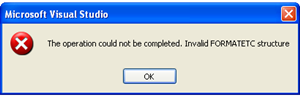
If you are getting "The operation could not be completed. Invalid Formatetc Structure" error while using Asp.Net Ajax controls in Visual studio 2008 then this error occurs because of version conflict of System.web.extensions assembly installed in GAC.

Invalid FORMATETC structure Ajax Asp.Net


To fix this problem try any of the following solutions.
1st Method.

Visual studio 2008 uses .NET framework version 3.5 and System.web.extensions version 3.5.

This error occurs because of two versions of System.web.extensions installed in Global assembly cache (GAC) typically in C:\WINDOWS\assembly

Visual studio 2008 automatically installs System.web.extensions version 3.5 in GAC and if you also uses visual studio 2005 or have installed asp.net ajax extensions for Visual studio 2005 which installs System.web.extensions version 1.0.xxxxx.x in GAC and hence version conflict and this Invalid FORMATETC structure error occurs as shown below..

Asp.Net AjaxControlToolkit invalid FORMATETC structure

The simplest solution to fix this error is to put Latest version of AjaxControlToolkit.dll for .Net framework 3.5 in BIN folder of website or application.

2nd Method.

Uninstall or remove System.web.extensions version 1.0.xxxxx.x from GAC which was installed to use ajax controls with visual studio 2005.


2

VisualStudio Setup Project Updates Version Already Installed Error

Visual Studio Setup Project Updates Another Version Of This Product Is Already Installed Error In Windows Forms or WinForms .

Setup Project Another version already installed error

When we make changes or update in windows forms or winforms application and create setup project to reinstall the application, we get below mentioned error.

Another version of this product is already installed. Installation of this version can not continue.
To configure or remove theexisting version of this product use Add/Remove programs on the control panel.


This error comes because of the same product code and version of application already installed.

To get rid of it we need to configure our setup project as mentioned below.

1. Select and highlight your setup project in solution explorer window.

Highlight setupproject

2. press F4 key to open properties window.

Change version of setup project

3. In this window, RemovePreviousVersions property is set to false by default, change it to TRUE.

4. change last digit of version (something like 1.0.11).

Click yes on next confirmation screen.

Now you need to build setup project again

Right click on setup project name and select BUILD.

now try to install the application over existing one and you won''t get the error.


5

Create Setup And Deployment Project in Visual Studio 2008/2010

Create Setup And Deployment Project In Visual Studio 2008/2010 For Asp.Net Web And Windows Applications

Create setup Project In Visual Studio

In this example i am going to explain how to create setup and deployment project for winforms windows application using visual studio 2005/2008/2010.

Similar approach can be applied for creating setup project for web application as well.


First of all create any sample windows/web application.

Create setup project


Right click on solution explorer root and select Add > New project 


In add new project dialog box select setup and deployment from other project types and then select Setup Project.


In the setup project file system editor window, right click on Application folder > Add > Project Output 


Now select primary output from next dialog box and click on OK.


Right click on User's desktop and create shortcut to primary output in application folder.


Similarly add shortcut in user's program menu.


Build the project by right clicking on setup project name and run the setup.


Hope this helps 


Download the sample code attached 


1

Unable To Debug The Binding Handle Is Invalid VS2005

Unable To Debug The Binding Handle Is Invalid Error VS2005. If you are trying to debug in Visual Studio 2005 and and not able to use breakpoints and getting unable to debug - the binding handle is invalid error in VS 2005 than follow these steps to fix this error.

Go control panel of your windows OS

Double click on Administrative tools > services

Now in services window > look for Terminal Services

Right click on it ans select properties > check it's startup type > it might be disabled

Restart the service and change startup type to Automatic

This should fix your problem

0

Unable To Attach Binding Handle Invalid Error Visual Studio

If you are getting Unable To Attach Binding Handle Invalid Error In Visual Studio while running the web application in visual studio and unable to debug. Than you need to take these steps to fix this error

1. Go to control panel in windows xp

2. Go to administrative tools

3. Double click on services

4. Scroll down to terminal services

Right click on it and select properties

now go to startup type and change it to Automatic

On top left of window see whether service is started or not ?, if nit than start it

This should fix you problem and you will be able to debug the application using break points

Have fun


Related Posts:
Forms Authentication with C# and managing folder lavel access with multiple web.config files
Ajax Cascading DropDownList in GridView with databse in ASP.NET
Forms Authentication using ticket and managing user roles in asp.net

Find More Articles