8

GridView Inside GridView In Asp.Net Master Detail Example

In this example i am explaining how to create Nested GridView Inside Gridview To Show Master Detail Or Parent Child Data In Asp.Net Using C# VB.NET.

Gridview inside gridview in asp.net
For this i have used northwind database and customers and Orders table to display data.

Drag SqlDataSource1 on page and configure it to fetch data Customers table and select CustomerID and CustomerName fields in select statement.

Drag and drop sqlDataSource2 on the page and configure it to fetch data from Orders table based on customer id in where clause.


Place one gridview on the page and set SqlDataSource1 as it's datasource.

Create one TemplateField field in this gridview and put another gridview inside ItemTemplate and provide SqlDataSOurce2 as it's datasource, set it's visible property to False.

Complete HTML source of page will look like shown below.

HTML SOURCE OF THE PAGE
<form id="form1" runat="server">
<div>
<asp:GridView ID="GridView1" runat="server" 
              AllowPaging="True" 
              AutoGenerateColumns="False" 
              DataKeyNames="CustomerID" 
              DataSourceID="SqlDataSource1" 
onselectedindexchanged="GridView1_SelectedIndexChanged">
<RowStyle VerticalAlign="Top" />
<Columns>
<asp:BoundField DataField="CustomerID" 
                HeaderText="CustomerID" 
                ReadOnly="True" 
                SortExpression="CustomerID" />

<asp:BoundField DataField="CompanyName" 
                HeaderText="CompanyName" 
                SortExpression="CompanyName" />
                
<asp:CommandField ShowSelectButton="True" 
                  SelectText="Show Details"/>
               
<asp:TemplateField>
<ItemTemplate>
<asp:GridView ID="GridView2" runat="server" 
              AutoGenerateColumns="False" 
              DataKeyNames="OrderID" 
              DataSourceID="SqlDataSource2" 
              Visible="false">
<Columns>
<asp:BoundField DataField="OrderID" 
                HeaderText="OrderID" 
                InsertVisible="False" 
                ReadOnly="True" 
                SortExpression="OrderID" />
<asp:BoundField DataField="OrderDate" 
                HeaderText="OrderDate" 
                SortExpression="OrderDate" />
</Columns>
</asp:GridView>
</ItemTemplate>
</asp:TemplateField>
</Columns>
</asp:GridView>

<asp:SqlDataSource ID="SqlDataSource1" 
                   runat="server" 
ConnectionString="<%$ ConnectionStrings:NorthwindConnectionString %>" 
SelectCommand="SELECT [CustomerID], [CompanyName] 
               FROM [Customers]">
</asp:SqlDataSource>

<asp:SqlDataSource ID="SqlDataSource2" 
                   runat="server" 
ConnectionString="<%$ ConnectionStrings:NorthwindConnectionString %>" 
SelectCommand="SELECT [OrderID], [OrderDate] 
               FROM [Orders] 
               WHERE ([CustomerID] = @CustomerID)">
<SelectParameters>
<asp:Parameter Name="CustomerID" Type="String"/>
</SelectParameters>
</asp:SqlDataSource>
</div>
</form>

Now generate SelectedIndexChanged event for parent gridview (GridView1) and write code mentioned below.

C# CODE BEHIND

protected void GridView1_SelectedIndexChanged(object sender, EventArgs e)
    {
        foreach (GridViewRow gvRow in GridView1.Rows)
        {
            gvRow.FindControl("GridView2").Visible = false;
        }
        SqlDataSource2.SelectParameters[0].DefaultValue = GridView1.SelectedDataKey[0].ToString();
        GridView1.SelectedRow.FindControl("GridView2").Visible = true;
    }


VB.NET CODE BEHIND

Protected Sub GridView1_SelectedIndexChanged(sender As Object, e As EventArgs)
 For Each gvRow As GridViewRow In GridView1.Rows
  gvRow.FindControl("GridView2").Visible = False
 Next
 SqlDataSource2.SelectParameters(0).DefaultValue = GridView1.SelectedDataKey(0).ToString()
 GridView1.SelectedRow.FindControl("GridView2").Visible = True
End Sub

Build and run the application.


1

Add License Agreement In Visual Studio Setup Project

Add License Agreement In Setup Project Using Visual Studio For Winforms Windows Forms Or Asp.Net Web Applications

Add License agreement in setup project

In this post i am explaining steps to add license agreement dialog in visual studio setup project.

After Creating Setup And Deployment Project in Visual Studio 2008/2010 follow instructions given below

step 1.

First of all we need to create a licence agreement file, for this open wordpad and type your licence agreement text and save it as licence.rtf.

Add this file in your project in solution explorer by select add existing item menu.


Step 2.

Right click on your setup project and select View > File System.

license agreement in visual studio setupproject

Step 3.

Right click on Application folder and select Add > File.

Browse to licence.rtf we added to solution in step 1.

Add license.rtf file

Step 4.

Right click on setup project in solution explorer and select View > User Interface.

UserInterface in setupproject

Step 5.

Right click on Start and select Add Dialog.

Add dialog in setup project

Select Licence agreement and click on OK.

License agreement dialog in setup project

Move it Up by right clicking and selecting Move Up to put it on the top to show up when setup starts.

Step 6.

Select Licence Agreement dialog in start group and open it's property window by pressing F4 key.


Click on Browse in LicenceFile property and select licence.rtf file from Application Folder and click on OK.

add licence.rtf to license agreement dialog

Save and build the setup project and licence agreement dialog will launch when you run setup.exe (as shown below).


2

Ajax Asp.Net PasswordStrength Example

PasswordStrength Example Using Ajax In Asp.Net.

In this example i'm explaining how to use PasswordStrength Control Of Ajax Toolkit In Asp.Net With Strength Indicator And BarIndicator.

Passwordstrength ajax asp.net

For this Add latest version of AjaxControlToolkit.dll in BIN folder of application and place one textbox and passwordstrength control on the aspx page.

Add below mentioned CSS style in stylesheet.css for strength bar to show up.


CSS StyleSheet
.BarIndicatorweak
{
    color:Red;
    background-color:Red;
}
.BarIndicatoraverage
{
    color:Blue;
    background-color:Blue;
}
.BarIndicatorgood
{
    color:Green;
    background-color:Green;
}

.BarBorder
{
    border-style:solid;
    border-width:1px;
    padding:2px 2px 2px 2px;
    width:200px;
    vertical-align:middle;
}

Now configure the passwordstrength control as shown below.

<form id="form1" runat="server">
<div>
<asp:ToolkitScriptManager ID="ToolkitScriptManager1" 
                          runat="server">
</asp:ToolkitScriptManager>

<asp:TextBox ID="TextBox1" runat="server" 
             TextMode="Password">
</asp:TextBox>
        <br />
<asp:PasswordStrength ID="PasswordStrength1" 
                      runat="server" 
         TargetControlID="TextBox1" 
         RequiresUpperAndLowerCaseCharacters="true"
         MinimumNumericCharacters="1" 
         MinimumSymbolCharacters="1" 
         MinimumUpperCaseCharacters="1" 
         PreferredPasswordLength="8"
         DisplayPosition="RightSide" 
         StrengthIndicatorType="Text">
</asp:PasswordStrength>
        <br />
        <br />
<asp:TextBox ID="TextBox2" runat="server" 
             TextMode="Password">
</asp:TextBox>
<asp:PasswordStrength ID="PasswordStrength2" 
                      runat="server" 
        TargetControlID="TextBox2" 
        RequiresUpperAndLowerCaseCharacters="true"
        MinimumNumericCharacters="1" 
        MinimumSymbolCharacters="1" 
        MinimumUpperCaseCharacters="1" 
        PreferredPasswordLength="8"
        DisplayPosition="RightSide" 
        StrengthIndicatorType="BarIndicator" 
        BarBorderCssClass="BarBorder" 
StrengthStyles="BarIndicatorweak;BarIndicatoraverage;BarIndicatorgood;">
</asp:PasswordStrength>
    </div>
    </form>

Build and run the application.


0

Invalid Formatetc Structure Ajax Asp.Net Error

Invalid FORMATETC Structure Ajax Asp.Net Error

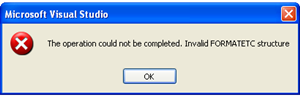
If you are getting "The operation could not be completed. Invalid Formatetc Structure" error while using Asp.Net Ajax controls in Visual studio 2008 then this error occurs because of version conflict of System.web.extensions assembly installed in GAC.

Invalid FORMATETC structure Ajax Asp.Net


To fix this problem try any of the following solutions.
1st Method.

Visual studio 2008 uses .NET framework version 3.5 and System.web.extensions version 3.5.

This error occurs because of two versions of System.web.extensions installed in Global assembly cache (GAC) typically in C:\WINDOWS\assembly

Visual studio 2008 automatically installs System.web.extensions version 3.5 in GAC and if you also uses visual studio 2005 or have installed asp.net ajax extensions for Visual studio 2005 which installs System.web.extensions version 1.0.xxxxx.x in GAC and hence version conflict and this Invalid FORMATETC structure error occurs as shown below..

Asp.Net AjaxControlToolkit invalid FORMATETC structure

The simplest solution to fix this error is to put Latest version of AjaxControlToolkit.dll for .Net framework 3.5 in BIN folder of website or application.

2nd Method.

Uninstall or remove System.web.extensions version 1.0.xxxxx.x from GAC which was installed to use ajax controls with visual studio 2005.


2

Create User Programmatically Using Membership In Asp.Net

Create User Programmatically Using Membership Provider In Asp.Net

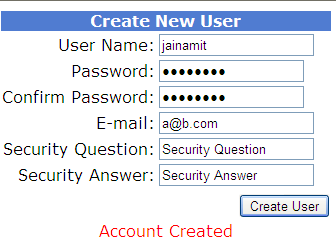
To create users or new accounts programmatically we need to use CreateUser Method of membership class.

Asp.Net Membership Create user programmatically
For this i have placed textbox controls and requiredFieldValidators to validate respective textboxes.

Read CreateUserWizard Email Verification Or Confirmation In Asp.NET to know how to create user with Email Activation validation link.


HTML SOURCE OF PAGE
<table border="0" style="font-family:Verdana;font-size:100%;">
<tr>
<td align="center" colspan="2" style="color:White;
    background-color:#507CD1;
    font-weight:bold;">Create New User</td></tr>

<tr><td align="right">User Name:</td>
<td><asp:TextBox ID="txtUserName" runat="server">
</asp:TextBox>
<asp:RequiredFieldValidator 
     ID="UserName" runat="server" 
     ControlToValidate="txtUserName" 
     ErrorMessage="User Name is required." 
     ToolTip="User Name is required.">*
</asp:RequiredFieldValidator></td></tr>

<tr><td align="right">Password:</td>
<td><asp:TextBox ID="txtPassword" runat="server" 
                 TextMode="Password">
</asp:TextBox>
<asp:RequiredFieldValidator 
     ID="Password" runat="server" 
     ControlToValidate="txtPassword" 
     ErrorMessage="Password is required." 
     ToolTip="Password is required.">*
</asp:RequiredFieldValidator></td></tr>

<tr><td align="right">Confirm Password:</td>
<td><asp:TextBox ID="txtConfirmPassword" 
                 runat="server" 
                 TextMode="Password">
</asp:TextBox>
<asp:RequiredFieldValidator 
     ID="ConfirmPassword" runat="server" 
     ControlToValidate="txtConfirmPassword" 
     ErrorMessage="Confirm Password is required." 
     ToolTip="Confirm Password is required.">*
</asp:RequiredFieldValidator></td></tr>

<tr><td align="right">E-mail:</td>
<td><asp:TextBox ID="txtEmail" runat="server">
</asp:TextBox>
<asp:RequiredFieldValidator 
     ID="Email" runat="server" 
     ControlToValidate="txtEmail" 
     ErrorMessage="E-mail is required." 
     ToolTip="E-mail is required.">*
</asp:RequiredFieldValidator></td></tr>

<tr><td align="right">Security Question:</td>
<td><asp:TextBox ID="txtQuestion" runat="server">
</asp:TextBox>
<asp:RequiredFieldValidator 
     ID="Question" runat="server" 
     ControlToValidate="txtQuestion" 
     ErrorMessage="Security question is required." 
     ToolTip="Security question is required.">*
</asp:RequiredFieldValidator></td></tr>

<tr><td align="right">Security Answer:</td>
<td><asp:TextBox ID="txtAnswer" runat="server">
</asp:TextBox>
<asp:RequiredFieldValidator 
     ID="Answer" runat="server" 
     ControlToValidate="txtAnswer" 
     ErrorMessage="Security answer is required." 
     ToolTip="Security answer is required.">*
</asp:RequiredFieldValidator></td></tr>

<tr><td align="center" colspan="2">
<asp:CompareValidator 
     ID="PasswordCompare" runat="server" 
     ControlToCompare="txtPassword" 
     ControlToValidate="txtConfirmPassword" 
     ErrorMessage="The Password and Confirmation Password must match."> 
</asp:CompareValidator></td></tr>

<tr><td align="right" colspan="2" style="color:Red;">
<asp:Button ID="btnCreateUser" runat="server" 
            Text="Create User" 
            onclick="btnCreateUser_Click"/></td></tr>
<tr><td align="center" colspan="2" style="color:Red;">
<asp:Label ID="lblMessage" runat="server">
</asp:Label></td></tr>
</table>

Write below mentioned code in Click event of Create New User Button.

C# CODE
using System.Web.Security;
protected void btnCreateUser_Click(object sender, EventArgs e)
    {
        MembershipCreateStatus status;
        MembershipUser newUser = Membership.CreateUser(txtUserName.Text, txtPassword.Text, txtEmail.Text, txtQuestion.Text, txtAnswer.Text, true, out status);
        switch (status)
        {
            case MembershipCreateStatus.Success:
                lblMessage.Text = "Account Created";
                break;
            case MembershipCreateStatus.DuplicateUserName:
                lblMessage.Text = "Username Already exists";
                break;
            case MembershipCreateStatus.DuplicateEmail:
                lblMessage.Text = "Email already registered";
                    break;
            case MembershipCreateStatus.InvalidEmail:
                    lblMessage.Text = "Invalid Email";
                    break;
            case MembershipCreateStatus.InvalidPassword:
                    lblMessage.Text = "Invalid password";
                    break;
            default:
                    lblMessage.Text = "Error occured, account was not created ";
                    break;
        }
    }

VB.NET
Protected Sub btnCreateUser_Click(sender As Object, e As EventArgs)
 Dim status As MembershipCreateStatus
 Dim newUser As MembershipUser = Membership.CreateUser(txtUserName.Text, txtPassword.Text, txtEmail.Text, txtQuestion.Text, txtAnswer.Text, True, _
  status)
 Select Case status
  Case MembershipCreateStatus.Success
   lblMessage.Text = "Account Created"
   Exit Select
  Case MembershipCreateStatus.DuplicateUserName
   lblMessage.Text = "Username Already exists"
   Exit Select
  Case MembershipCreateStatus.DuplicateEmail
   lblMessage.Text = "Email already registered"
   Exit Select
  Case MembershipCreateStatus.InvalidEmail
   lblMessage.Text = "Invalid Email"
   Exit Select
  Case MembershipCreateStatus.InvalidPassword
   lblMessage.Text = "Invalid password"
   Exit Select
  Case Else
   lblMessage.Text = "Error occured, account was not created "
   Exit Select
 End Select
End Sub


11

CreateUserWizard Account Activation Email Verification Confirmation

This example code is for CreateUserWizard Account Activation Through Email Verification Confirmation Or Validation In Asp.NET.

I am explaining how to create new signup using createnewuserwizard with membership provider and sending link to activate account using C# or VB.

CreateUserWizard Email Confirmation or verification
Read Create Log in Page Using Login Control to know how to setup membership provider.

I have created one NewUser.aspx page for signups.

One EmailVerification.aspx page to open when user clicks on the link in email sent to his emailid at the time of creating account.

Newly created accounts are deactivated by default and user won't be able to login untill he clicks on the link sent to his email id to validate, verify and activate.


First of all create a template which you want to send to users who sign up on the site. for this create a text file and write the text mentioned below and name it mail.txt.

Hello <%UserName%>!.

You or someone with your id signed up at this site, Your new account is almost ready, but before you can login you need to confirm your email id by visitng the link below:
<%VerificationUrl%>

Once you have visited the verification URL, your account will be activated.

If you have any problems or questions, please reply to this email.

Thanks!

Open NewUser.aspx page in design view and palce a CreateUserWizard control on it.

Set DisableCreatedUser property to true to deactivate new accounts untill user activate it by clicking the link.


Set MailDefinition property as mentioned below for wizard to send cenfirmation emails.

<MailDefinition From="YourGmailID@gmail.com" 
                Subject="Confirmation mail" 
                BodyFileName="~/mail.txt">
</MailDefinition>

HTML source of NewUser.aspx will look like
<form id="form1" runat="server">
<asp:CreateUserWizard ID="CreateUserWizard1" 
                      runat="server" 
                      DisableCreatedUser="True" 
        ContinueDestinationPageUrl="~/Login.aspx" 
        onsendingmail="CreateUserWizard1_SendingMail">
<MailDefinition From="YourGmailID@gmail.com" 
                Subject="Confirmation mail" 
                BodyFileName="~/mail.txt">
</MailDefinition>
<WizardSteps>
<asp:CreateUserWizardStep runat="server" />
<asp:CompleteWizardStep runat="server" />
</WizardSteps>
</asp:CreateUserWizard>
</form>

Write code mentioned below in SendingMail event of CreateUserWizard control in code behind of page.

C# CODE
using System.Net.Mail;
using System.Web.Security;

protected void CreateUserWizard1_SendingMail(object sender, MailMessageEventArgs e)
    {
        MembershipUser newUserAccount = Membership.GetUser(CreateUserWizard1.UserName);
        Guid newUserAccountId = (Guid)newUserAccount.ProviderUserKey;
        string domainName = Request.Url.GetLeftPart(UriPartial.Authority) + Request.ApplicationPath;
        string confirmationPage = "/EmailConfirmation.aspx?ID=" + newUserAccountId.ToString();
        string url = domainName + confirmationPage;
        e.Message.Body = e.Message.Body.Replace("<%VerificationUrl%>", url);
        SmtpClient smtp = new SmtpClient();
        smtp.Host = "smtp.gmail.com";
        smtp.Port = 587;
        smtp.UseDefaultCredentials = false;
        smtp.Credentials = new System.Net.NetworkCredential("YourGmailUserName@gmail.com", "YourGmailPassword");
        smtp.EnableSsl = true;
        smtp.Send(e.Message);
        e.Cancel = true;
    }

VB.NET CODE
Protected Sub CreateUserWizard1_SendingMail(sender As Object, e As MailMessageEventArgs)
 Dim newUserAccount As MembershipUser = Membership.GetUser(CreateUserWizard1.UserName)
 Dim newUserAccountId As Guid = DirectCast(newUserAccount.ProviderUserKey, Guid)
 Dim domainName As String = Request.Url.GetLeftPart(UriPartial.Authority) + Request.ApplicationPath
 Dim confirmationPage As String = "/EmailConfirmation.aspx?ID=" & newUserAccountId.ToString()
 Dim url As String = domainName & confirmationPage
 e.Message.Body = e.Message.Body.Replace("<%VerificationUrl%>", url)
 Dim smtp As New SmtpClient()
 smtp.Host = "smtp.gmail.com"
 smtp.Port = 587
 smtp.UseDefaultCredentials = False
 smtp.Credentials = New System.Net.NetworkCredential("YourGmailUserName@gmail.com", "YourGmailPassword")
 smtp.EnableSsl = True
 smtp.Send(e.Message)
 e.Cancel = True
End Sub

Mail sent will look like shown below.
Createuserwizard verification email

To activate user through EmailConfirmation.aspx page Place a label control on the page and write below mentioned code in Page_Load Event.

C# CODE
protected void Page_Load(object sender, EventArgs e)
    {
        Guid newUserId = new Guid(Request.QueryString["ID"]);
        MembershipUser newUser = Membership.GetUser(newUserId);
        if (newUser == null)
        {
            lblMessage.Text = "User Account not found";
        }
        else
        {
            newUser.IsApproved = true;
            Membership.UpdateUser(newUser);
            lblMessage.Text = "Account Approved, please  Login to continue";
        }
    }

VB.NET CODE
Protected Sub Page_Load(sender As Object, e As EventArgs)
 Dim newUserId As New Guid(Request.QueryString("ID"))
 Dim newUser As MembershipUser = Membership.GetUser(newUserId)
 If newUser Is Nothing Then
  lblMessage.Text = "User Account not found"
 Else
  newUser.IsApproved = True
  Membership.UpdateUser(newUser)
  lblMessage.Text = "Account Approved, please  Login to continue"
 End If
End Sub


Build and run the application.

Download Sample Code


1

LoginControl Example In Asp.Net To Create Login Page

LoginControl Example In Asp.Net 2.0 3.5 4.0 To Create Login Page Using Membership Provider DataBase ASPNETDB.MDF.

Login Control Example In Asp.Net
Create a new website and add new web form in the solution, name it Login.aspx,


Drag and place a Login control on this page from toolbox in visual studio.

Assign DestinationPageUrl property of Login control to the page we want to open after login, i m redirecting to Default.aspx page.

HTML SOURCE OF LOGIN.ASPX PAGE
<form id="form1" runat="server">
<asp:Login ID="Login1" runat="server" 
           onloginerror="Login1_LoginError"
           RememberMeSet="True"
           DestinationPageUrl="~/Default.aspx">
</asp:Login>
</form>


Place a LoginStatus and LoginName control on Default.aspx page to display username and logout hyperlink.

HTML SOURCE OF DEFAULT.ASPX PAGE
<form id="form1" runat="server">
 <div>
 <asp:LoginStatus ID="LoginStatus1" runat="server" />
 Welcome
 <asp:LoginName ID="LoginName1" runat="server" />
</div>
</form>


Now we need to configure our website or application to use membership provider database to authenticate user login credentials.

For this Click on website menu of visual studio and select ASP.NET Configuration.

Asp.Net membership provider website configuration

Click on Security Tab and click on Use the security Setup Wizard to configure security step by step link.

Security configuration

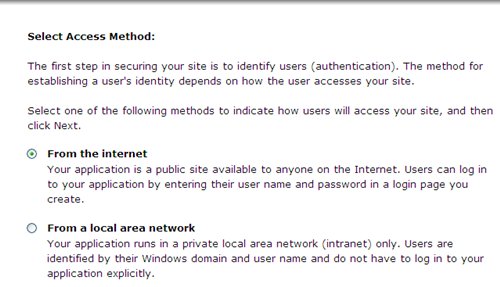
Click next on welcome screen And Select From the internet option in next screen.

access method

Click next and reach to step 5 to create new user, enter username and password and other informations and click on create user.

create new user

In next screen Select Anonymous User radion button and then select deny permission, click on add this rule to dent anonymous access to site.

deny anonymous access

CLick on finish to complete asp.net membership provider configuration.

This will autometically add ASPNETDB.MDF database in App_Data Folder.

Build and run the application, login with the credentials used in creating new user in configuration.


2

Set Session TimeOut In Asp.Net Using Web.Config IIS

Set Or Manage Session TimeOut In Asp.Net Using Web.Config and IIS

Set Session Timeout in Asp.Net using web.config and IIS

In this post i'm explaining how to set or increase session timeout value in web.config or IIS in Asp.Net.

Read Detecting Session Timeout and Redirect to Login Page in ASP.NET to know how to detect Session TimeOut.

1. Set session timeout in IIS.

Open IIS manager by typing inetmgr in Start > run in windows.

Right click on websites > Select Properties.


Go to ASP.NET tab, Click on Edit Configuration.

Increase Session TimeOut In asp.Net web.config

Click on State Management Tab, Set Session TimeOut value (In Minutes).


2. Set Session TimeOut in Web.Config

We can set session timeout in SessionState section of web.config file as mentioned below, timeout value is in minutes.

<system.web>
    <sessionState mode="InProc" cookieless="false" timeout="15">
    </sessionState>
</system.web>

3. Set session timeout in Global.asax

void Session_Start(object sender, EventArgs e)
{
  // Code that runs when a new session is started
  Session.Timeout = 15;
}


Find More Articles