2

Select Find Nth Highest Salary Record In Sql Server

Select Find Get Second Third Nth Highest Salary Record Row In Ms Sql Server. This is most frequentky asked question how to select or get nth highest record or second third row/record from any column of sql table.

Select Find Nth Highest Record In Ms Sql Server
for example select get or fetch 2nd (second highest) or nth highest salary of employee or 10th highest record from the table.

There are various ways to achieve this result, i've mentioned few here.

I have created Employee table with following schema.


1st method

To select 2nd highest salary or record we can use following query.

SELECT TOP 1 [Salary]
FROM 
(
SELECT  DISTINCT TOP 2 [Salary]
FROM [dbo].[Employee]
ORDER BY [Salary] DESC
) temp
ORDER BY [Salary] 


2nd method

To select 3rd highest salary or record we can use following query.
SELECT TOP 1 [Salary]
FROM ( SELECT  TOP 3 [Salary]
  FROM [dbo].[Employee] e1 GROUP BY e1.Salary
  ORDER BY [e1].[Salary] DESC) e2
  ORDER BY [Salary]


These queries holds good untill we are selecting only salary column and fails when we want to select all the columns or few more columns with salary as salary can be same for more then one employees or records.

For example if we change the first query to select 2nd highest salary with all the columns of table, output would be undesirable as shown below.
SELECT TOP 1 [Salary],[EmployeeName]
FROM 
(
SELECT  DISTINCT TOP 2 [Salary], [EmployeeName]
FROM [dbo].[Employee]
ORDER BY [Salary] DESC
) temp
ORDER BY [Salary]


To select all columns we can use queries mentioned below.

This query will give 4th highest salary record but will show only 1 highest record if even if there are multiple duplicate salary records.

SELECT TOP 1 * FROM [dbo].[Employee]
WHERE [Salary] NOT IN  
( 
  SELECT DISTINCT TOP 3 [Salary] FROM [dbo].[Employee]
  ORDER BY [Salary] DESC
)
ORDER BY [Salary] DESC


These 2 queries will select 4th highest salary with duplicate records.
SELECT * FROM [dbo].[Employee]
WHERE [Salary] = 
( 
  SELECT MAX([Salary]) FROM [dbo].[Employee] 
  WHERE [Salary] NOT IN
    ( 
      SELECT DISTINCT TOP (4-1) [Salary] FROM [dbo].[Employee] e1
      ORDER BY [Salary] DESC 
    )
)

SELECT *
FROM Employee E1
WHERE (4-1) = (
SELECT COUNT(DISTINCT(E2.Salary))
FROM Employee E2
WHERE E2.Salary > E1.Salary)


We can also use sql ranking function to get desired result as follows.

SELECT * FROM 
(
  SELECT DENSE_RANK() OVER(ORDER BY [Salary] DESC)AS RowId, * 
  FROM [dbo].[Employee] 
) AS e1
  WHERE e1.RowId = 4  


1

Forms Authentication In Asp.Net

Forms Authentication In Asp.Net 20.,3.5,4.0 With Folder Level Access And Managing Roles

Forms Authentication in asp.net

In examples below i'm explaining how to use forms authentication in Asp.Net and forms authentication tickets in Asp.net.


Forms Authentication In Asp.Net 2.0 and 3.5


Forms Authentication in ASP.NET is technique to decide how users can access your web application.

Using froms authentication we can decide certain users can access only certain pages or we can control the anonymous access, we can implement folder level access and access based on roles.

we can manage the access through web.config file or folder level access and through multiple web.config files using forms authentication.

Read More


Forms Authentication Ticket In Asp.Net 2.0 And 3.5


In this article i am going to describe how to implement Forms authentication tickets and manage user roles based access in ASP.NET using C# and multiple web.config files

Read More


Bypass Forms Authentication Or Skip Authorization


Some readers ask me how to skip or bypass forms authentication or Authorization for selected pages in asp.net or a scenario where only few pages on site needs user to log in rest can be accessed without login.

Read More


Detecting Session Timeout and Redirect to Login Page in ASP.NET


In this example i'll show how to detect the session timeout which occurs when user is idle for the time specified as Session imeout,using forms authentication,C# asp.NET and if it is than redirect the user to login page to login again, for this i've set time out value in web.config file to 1 minute

Read More


Have fun

7

Maintain Scroll Position On After Postback in Asp.Net 2.0 3.5

In this example i'm explaining different methods of Maintaining Scroll Position On/After Postback In Asp.Net 2.0,3.5,4.0 Web pages or Applications.


Maintain scroll position after postback
Method 1 .

Write below mention directive in page directive section of html source of aspx page to maintain scroll position of only one page or selected pages rather then whole web application.

<%@ Page Language="C#" AutoEventWireup="true" CodeFile="Default.aspx.cs"  
         MaintainScrollPositionOnPostback="true"  Inherits="_Default" %>


Method 2.

To maintain scroll position programmatically use code mentione below.
System.Web.UI.Page.MaintainScrollPositionOnPostBack = true;


Method3.

To maintain scroll position application wide or for all pages of web application we can write below mentioned code in pages section of web.config file so that we don't need to add page directive in each and every page.

<pages maintainScrollPositionOnPostBack="true">

Hope this helps.

5

Create Setup And Deployment Project in Visual Studio 2008/2010

Create Setup And Deployment Project In Visual Studio 2008/2010 For Asp.Net Web And Windows Applications

Create setup Project In Visual Studio

In this example i am going to explain how to create setup and deployment project for winforms windows application using visual studio 2005/2008/2010.

Similar approach can be applied for creating setup project for web application as well.


First of all create any sample windows/web application.

Create setup project


Right click on solution explorer root and select Add > New project 


In add new project dialog box select setup and deployment from other project types and then select Setup Project.


In the setup project file system editor window, right click on Application folder > Add > Project Output 


Now select primary output from next dialog box and click on OK.


Right click on User's desktop and create shortcut to primary output in application folder.


Similarly add shortcut in user's program menu.


Build the project by right clicking on setup project name and run the setup.


Hope this helps 


Download the sample code attached 


1

Move Export Facebook Photos Albums To Picasa Or Google Plus


If you want to move or export your FaceBook photos and albums to Google Plus + or Picasa,

then you can do this easily using web utility called MoveYourPhotos available in Chrome web store.


Move or export facebook photos and albums to google plus + picasa


Move Your Photos to Google Plus or Picasa


Move Your Photos is available as Chrome browser add on, so you need to have Google Chrome browser to use this application.

If you have joined Google's newly launch social networking site Google Plus and want to export all your photos and albums from facebook then Move Your Photos is the solution.

You can choose to upload all or upload selected photos or albums to picasa

Start moving or exporting facebook photos and albums to google plus using Move Your Photos
Hope this helps

0

Google Plus + Facebook Feeds Integration Extension

Integrate,Combine or fetch Facebook feeds in google plus with google+facebook extension.


Recently google has launched it's new social networking platform google Plus(google +),
and if you want to Integrate your facebook feeds inside it then this extension is for you.


.
Google+Facebook Feeds Extension

Google+Facebook allows you to see or integrate your Facebook stream inside Google Plus(Google+).

Simply Connect to Facebook, and get all the updates on your Google+ Facebook tab.

Crossrider has released the extension Google+Facebook. After downloading and installing it, a small Facebook tab appears at the top of the page, right beside the Google+ Home button. Clicking on it will display your Facebook news feed instead of your Google+ Stream. Just click on Home to go back. The extension even lets you update your Facebook status from withing Google+.

You can download Google+Facebook extension from this link


Enjoy google+ and facebook together


2

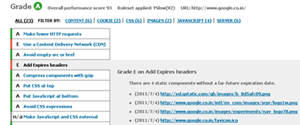
Add Expires Headers In Asp.NET

Add Expires Headers In Asp.NET 2.0,3.5,4.0 Using C# And VB.NET. In this example i am Explaining how to add or set expires headers for static files or images in asp.net 2.0, 3.5

Performance is the main concern for any asp.net web application and bit of this can be achieved by setting expires headers for static files and images which doesn't change too often.

Add Expires Headers In asp.net 2.0 3.5


when expires headers are set for a future date or to never expires then browser fetch these files from cache and doesn't need to download these files every time application is loaded in browser, hence site or application is loaded faster


To do this we need to add code mentioned below in web.config file of asp.net web application

Set Expires headers to future date

<configuration>
    <system.webserver>
        <staticcontent>
            <clientcache cachecontrolcustom="" cachecontrolmode="UseExpires" httpexpires="Thu, 31 Dec 2020 00:00:00 GMT">
        </clientcache></staticcontent>
    </system.webserver>
</configuration>

Add headers to expire after certain days

<configuration>
  <system.webserver>
    <staticcontent>
      <clientcache cachecontrolmaxage="150.00:00:00" cachecontrolmode="UseMaxAge">
    </clientcache></staticcontent>
  </system.webserver>
</configuration>

Now the file headers will expire after 150 days


Hope this helps


1

No Edit Html Option In New Blogspot/Blogger In Draft


.
If you are a blogspot/blogger user, then u may have noticed the blogger have removed the Edit Html Link from new blogger in draft dashboard.

This is quite frustrating as u can't not edit html of ur page.

But there are still 2 options to go to HTML code of ur template.


Please use This FeedBack Form to let blogger team know that you want Edit Html Option in New blogger


1st Option

Uncheck the Make Blogger in draft my default and reload the page by typing www.blogspot.com.

It will take you to old dashboard.

2nd Option

Log into Blogger in draft

Click the Dashboard Button


Copy your BlogID from address bar of browser.

Now append your BlogID at the end of link mentioned below

http://draft.blogger.com/html?blogID=

Url should look like this

http://draft.blogger.com/html?blogID=xxxxxxxxxxxxxx

Where xxxxxxxxxxxxxx is your BlogID

Paste in address bar and u'll be taken to html code of your template.


.

Find More Articles